Check out the conversation on Apple, Spotify and YouTube.
Why PMs should care about OpenClaw (1:55)
Aakash: We’ve all seen the hype. It’s up to 245,000 GitHub stars, tons of forks, over 2 million weekly visitors. OpenClaw is going totally viral, and it’s had a tumultuous history. It used to be called Clawdbot. Anthropic asked him to change the name. He changed it to Moltbot. He realized that wasn’t a great name. He called Sam Altman, and Sam said you could call it OpenClaw. It was called OpenClaw, and then a week later, Sam bought him for over a billion dollars. The question on everybody’s minds is how do PMs actually use this tool. So, why should PMs actually care about OpenClaw?
Naman: Well, the biggest reason would be that versus a traditional LLM which is more reactive, here you can really take the reins of whatever you’re trying to do and be proactive and plan ahead in terms of whatever you’re willing to accomplish. What that looks like in practice is that instead of conversationally asking it questions, here you can set it up to execute even when it’s 3 a.m. and you’re asleep, you’re not even at your computer. Finally, the biggest benefit in terms of usage itself is that it’s not cloud locked, which means that you can plug and play whichever LLM you want based on the use. If you’re doing more deep research type work, you can plug in Opus versus if you want a faster response to a customer, maybe you can just use a faster Gemini model.
The easiest setup guide for OpenClaw (3:24)
Aakash: I’ve been playing with OpenClaw for weeks now, and I know one of the toughest parts is actually setting it up. I’ve tried to teach a couple of people this, and this is the part that once they do it, they’re unlocked. So can you walk us through the easiest no stress setup guide you could find on YouTube?
Naman: Yes, so when it comes to setting it up, there are two broad ways to do this. The first of those two will only take me 15 seconds to demo. It’s actually kind of crazy how easy it is, but really all you have to do is go on emergent.sh. Some of you might be familiar with Emergent, it’s a competitor to Lovable, give or take. And what they’ve done here is they’ve put in this whole bot feature. So what this lets you do is literally one click your installation. It just pastes everything you have to run. The only thing you replace is your LLM key itself. You do that, hit enter, it just sets it up for you.
The reason why we will not focus on this approach is that it is restrictive in nature. It does not allow you the full freedom to run OpenClaw on your computer machine, use your RAM, run your LLM locally. So, but in case somebody’s looking for a really quick and easy out of the box type setup, that is available.
Three terminal commands to install OpenClaw (5:02)
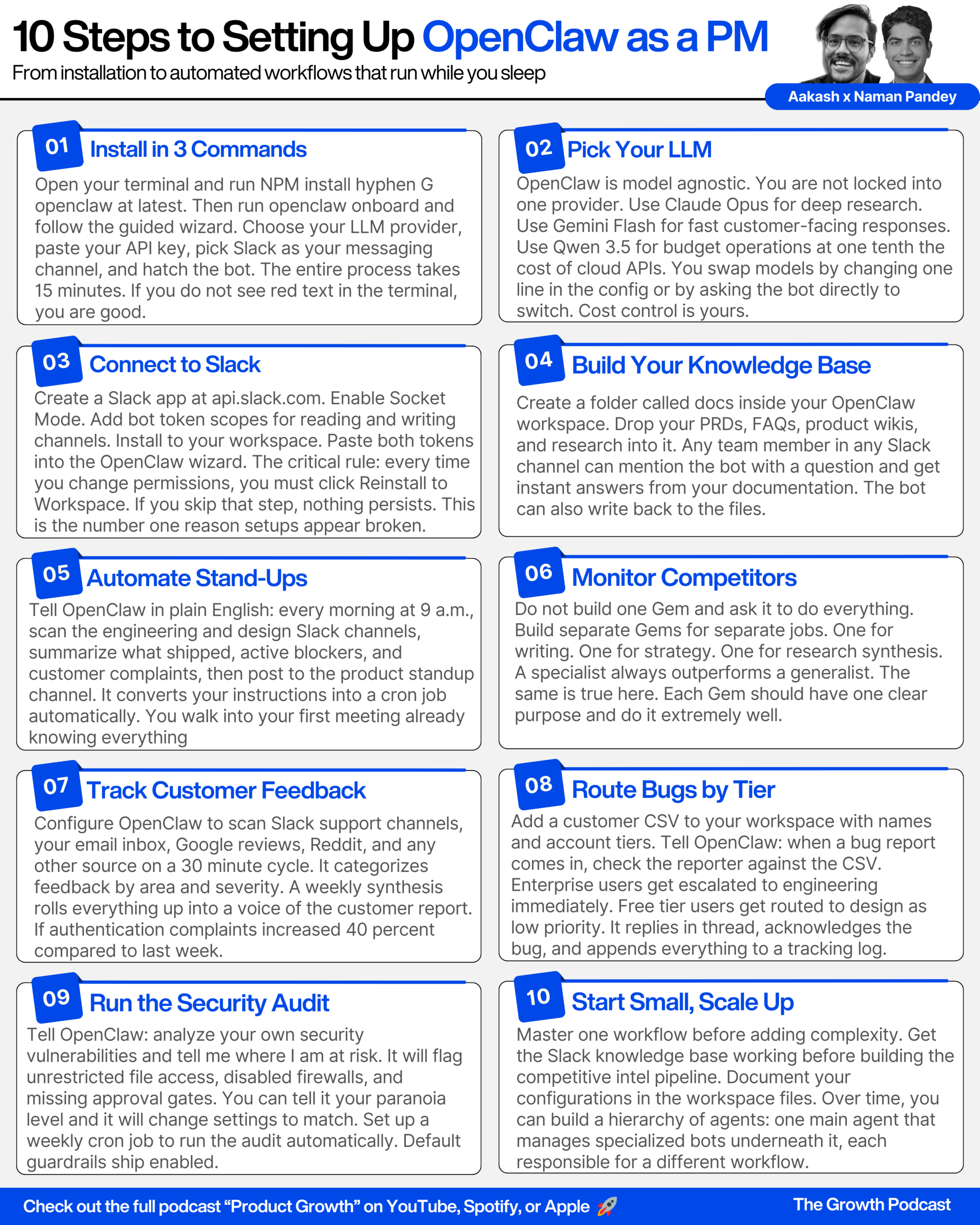
Naman: Now, for most people, if you’re trying to do it the traditional old fashioned way, there’s a simple three-step process that you can just use on your terminal. Before we start actually pasting commands, remember that anytime you get stuck here, this stuff can be intimidating, but really if you just reverse Google whatever error you’re getting, it’s very easy to figure out.
The first command you want to paste is quite simply NPM install hyphen G, OpenClaw at latest. What this does is it finds out the latest version that’s available, you hit enter. You might not have NPM or something like that installed, and you might need to install that. So that’s Node Package Manager from Node.js and you run into these kind of issues when you’re using Terminal. The most important thing to do is persevere. Just Google or take a screenshot of your screen and drop it into Claude or ChatGPT and they will help you.
So that looked like it worked. My quick and easy way to figure this out is if you’re not seeing red, you’re good. Sometimes you’ll get a bunch of warnings, but they’re fine and acceptable. So as long as you’re not seeing bright red and like error error error, you’re probably fine.
The soul.md file and bot personality (6:30)
Naman: The second command is openclaw onboard. Before I run this, I want to walk through what happens when you actually do this. So just for context, Peter Steinberger, who invented this, the origin of the problem he was trying to solve was to have a bot that he could WhatsApp. So it started there in his head, but then he was like, why stop there? He wanted this bot to have a complete personality of its own. He really wanted to bake this into the entire soul of what he was creating, which is why I think you’ll find it interesting that there’s actually a soul.md file that gets generated that you can impart whatever attributes you want to. And then the way it is configured is that you cannot skip all that stuff. It’ll force you to give it a name, tell it how you want it to interact, and so on.
Choosing your LLM provider and API key (8:32)
Naman: So next up, because this is agnostic of model, these are literally all of your options. I’m sure there’s probably more. Even if there’s something not mentioned here, there is a way to run this. What I would like to do is use Google because of late I’ve just been a Gemini API kind of guy. Random side note, I do feel in terms of dollar value, it gets me the farthest while still not compromising on quality that much. That’s just my reasoning. I’m sure it just depends on what you do.
Aakash: Let’s show people how to get the API key just in case.
Naman: You literally just Google “Gemini key create.” It’ll bring you to the site. You just click Create API Key, you give it a name, you might want to call it OpenClaw, and when you create a key, it’ll just generate the key. Make sure you copy it and put it somewhere safe because sometimes it doesn’t let you re-access it once you’ve created it. You can just paste your key, just try to not broadcast it over the internet, and then you hit enter.
Then next up, it lets you choose exactly which model within Google to use. You can just go with the biggest, brightest one, which right now as of recording is Gemini 3 Pro. However, if this is going to be a Slackbot that end customers are going to be interacting with, they probably don’t need to wait 10 to 15 seconds for each response. In that case, if you just pick any of the flashes, those are known to be really quick.
The gateway and channel selection (12:55)
Naman: The other really cool thing about OpenClaw is that it really has one gateway that then connects to all of the rest of the internet. So what this means is if you’re running it on your WhatsApp versus also on your Slack, maybe you also have a Discord going for some reason, you don’t need to create different gateways for that. All of it sits under one place, neatly organized, and you can then also use that one gateway to monitor and even delete any of your operations.
Now, because this is catered towards product managers, obviously I know you all love to live and breathe on Slack, so we’ll just be choosing Slack socket mode.
Full Slack integration walkthrough (14:27)
Naman: Because the terminal instructions aren’t the greatest, what I did was compile easily followable instructions. If you’re wondering where these came from, there’s actually a TUI of OpenClaw itself where you can ask questions. So say you’re stuck at any given step, literally anything you’re trying to do, you can actually ask OpenClaw to help you figure it out.
The first thing it would like is the Slack bot token, and it always begins with an XOXB. For this demo, I actually set up a brand new Slack for you guys, just so we would be able to go through this together, because there’s a decent amount of pitfalls here to dissuade even the most persistent of you all.
Step one is go to api.slack.com/apps. Create an app. Choose from scratch and name it OpenClaw. Pick your workspace. Create app. Next up, click Socket Mode on the left sidebar. Enable socket mode, a box will pop up asking for a token name. Call it secret-token. Hit generate. Copy it and keep it somewhere safe.
Next, go to OAuth and Permissions. Scroll down to scopes, bot token scopes. We’ll be adding all of the scopes that we want our bot to perform. What this translates into is we’re going to be giving it permissions to read certain channels, respond to certain channels, make sure that it has all of the background knowledge. Chat write, IM read, channels history, groups history. All of these are important.
Once you save these, go all the way up and you’ll see this Install to Workspace option. Click that, it’ll ask you for these permissions, you hit Allow. Now this bot token is exactly what we want to paste into our terminal.
The most key important thing here is no matter what you do in Slack when it comes to your app, you always want to click Reinstall to Workspace because unless you do that, it will not work, it will not persist.
Skills vs tools explained (20:24)
Naman: When it says configure skills now, what it’s talking about is unrelated to Slack. This pertains to a capability that OpenClaw has. The two really important things that you want to set up are skills and tools.
The way Peter Steinberger chose to describe each of them was, and I quote, tools are organs, can the agent do it, versus skills are textbooks, does the agent know how to do it? I feel like that really put into perspective what these things are.
These are all open source. These are just people and good-hearted developers of the world. They just developed these. A lot of these are constantly evolving. I remember seeing one for Philips Home. Let that sink in for a second. You can WhatsApp something to a bot and it changes the light in the room that you’re sitting in at 4 a.m. to wake you up.
The way to select skills is by hitting space, and then if you hit enter, it’ll just skip. You’re not really missing out because we will be going over how you can add hundreds of skills later. I just found it easiest to modify the text file. You can even use an LLM to generate a really long verbose, super comprehensive skill, and then paste that in.
The gateway dashboard and hatching the bot (23:14)
Naman: Now, the moment we’ve all been waiting for. I just love that they say they’re trying to hatch the bot. I imagine like a little dinosaur hatching. These little things that I appreciate so much. We’ll hit enter here and it says wake up my friend.
Once you’re done setting up, it will allow you to go to this front-end gateway, which is the UI version of the gateway, which lives on 127.0.0.1:18789. The chat is really just the way you can communicate with OpenClaw. Usually the best way for it to do something is just ask it to do a certain thing, and it’s really good at programming itself to do whatever you ask it to do. That is still the biggest USB of why we want to use OpenClaw. You don’t have to sit and build all the components that you need. You just tell it to build this for me, and it almost architects itself, spins up other bots that it then manages. It does all of that autonomously.
A couple other things, if you ever want to change what API you’re using, you can go into config. If you scroll down, you’ll see this option called secrets. If you click raw, it’ll show you what model you’re using. If you want to use a faster model, you just change this out, hit save, update.
Local vs VPS vs Mac Mini (23:40)
Aakash: So building this locally, some people say you should build this in a VPS, some people say you shouldn’t. What’s the truth about that?
Naman: Really it depends on two things. First, your usage, and second, your risk appetite. I’ll be candid, one of the things that I was trying to do is there is a secure folder that you can make called docs, and you can configure it to only interact with the documents inside the docs folder. However, when I was setting it up, I wasn’t the most careful, and what ended up happening was on my Slack, it looked through all of the files that I had on my computer and it answered a question with a response that it really had no business knowing.
If you use a VPS, you have that one layer of abstraction that protects it from making changes on your local files. You forego that privilege the moment you’re not careful.
Aakash: So VPS you can make it so your bot doesn’t fall asleep, it can be a little bit more secure, but it doesn’t have access to your local file system. And then also people use the Mac Mini, which is a totally different computer.
Naman: Of all of the three, I think Mac Mini or a different computer is the best, most recommended. After that local, after that VPS. But look, in your own situation, for this demo just continue with local.
The only thing I would add is a VPS is also capable of making changes to your local files. VPS is, if we were to rank them in terms of risk, the riskiest, because your computer need not even be on and stuff could be changing inside it and your bot could be actively creating or destroying things, just running amok.
What we have here, what we’re doing right now, and thankfully what happens by default is that the moment I shut my laptop, the bot falls asleep. Then we come back, there’s a command to wake it up again, and that’s when things go live.
The workspace file system (26:04)
Naman: The way this is configured is it auto runs a file called bootstrap.md and it tells it what it is, that it’s OpenClaw, it has skills, it has hooks, it has a soul, a whole personality. Then it just kind of disappears, leaving it in like a dazed state.
This folder here which is just called .openclaw, and some of you will struggle in trying to reach it. If you click your little Finder icon, right click, go to Go to Folder, if you just press a period, it should show you an option to go to OpenClaw.
What you need to know is this workspace component. Soul.md is your deep personality or value. Identity is the agent identity. User is just all of your preferences. Memory is stuff that persists, so even when you close your bot, shut your computer down, this stuff continues to be alive. Tools are your local configuration notes. And finally, heartbeat, which is really important, is a list of all of your cron jobs.
Use case 1: AI-powered Slack knowledge base (38:06)
Naman: Use case one is that we’re going to turn any Slack channel into an AI powered knowledge base that answers team questions from your product documentation. We’ll be dropping our PRD, FAQ documentation, any product wiki into the workspace folder. Then anyone in the channel can simply mention the bot to get instant contextual answers.
Why should PMs care? Because it eliminates the product questions channel problem where PMs have to spend hours answering the same questions about feature specs, launch dates, and edge cases. This repository is not locked in. It lives and breathes as a living space. You can add and remove stuff to it. The memory persists.
Here’s the difference between this and Slackbot. Slackbot does not have access to local files that live on your computer, neither does it have the ability to read or write into those files. So this is your workspace folder. I simply just made a folder called docs. Once I go into it, it has this PRD document.
I also have this FAQ file which I had not added to this folder yet, but I’m going to drag it in front of you. My goal here is to demo that even though this file was just added, it will still work.
It found the FAQ without me telling it explicitly that I just pasted that in. It even offered to append new questions. I said sure, let’s do that. It even labeled it with “Additional Features and Infrastructure” and it added those four questions that it thought should be there.
Aakash: I see this as an instant knowledge base. If you can construct a really strong repo of these are the features we’re going to build, this is the strategy, these are the transcripts of every customer conversation, these are all the relevant data charts, you can scale your impact. Engineers and designers can chat with your knowledge bot to come up with a proposal, then the human actually reviews it. The PM can really scale their impact this way. With the way ratios are going, PMs are supporting more engineers than ever. I see this as a really important tool to multiply your leverage.
Use case 2: Automated daily stand-up summaries (47:47)
Naman: Automated daily stand-up summaries. What it does, every morning at 9 a.m., OpenClaw scans your team’s Slack channels. These can be as many channels as you want. It summarizes what happened overnight, identifies blockers, and posts a concise stand-up brief to product stand-up.
Why should PMs care about this? Because it replaces the fifteen-minute context gathering ritual. I actually saw a post on LinkedIn just earlier today where somebody was like, the bane of my existence is on every Monday I have to sift through all of what happened last week and compile that to share on my weekly stand-up. So you walk into your first meeting already knowing what’s shipped, what’s blocked, and what customers complained about.
The way to do this is set up a cron job. You just go on your chat and mention the following command. What I like to do is go on whatever Claude or what have you and just type out in simple English that at 8 a.m. I need to know blah blah blah. It will automatically convert those English instructions to system readable code.
You can even have an associated catchphrase for this to trigger. You just say “standup” and it does everything else for you.
So tell me if any of this feels accurate. 5 features have been shipped. 3 new templates have been shipped. There’s a few blockers. UI development is on leave, unable to fix broken back rate. I’m also going on leave extending by 2 days.
Aakash: We all live in Slack hell with way too many messages and notifications. It’s impossible to keep up. So now you have somebody who’s there that you can converse with and get caught up on Slack.
Naman: We can even ask it, what’s here that needs my immediate attention? Because if you’re trying to not get overwhelmed by all of this stuff going on, it is smart enough to figure out what you need to immediately act on. Also notice how it knows that Naman is me. So it didn’t say Naman here, it said “you.” Ensure your tasks are handed off or documented.
The headline here is that unlike other LLMs which constantly lose memory, run out of context size, run out of token windows, this is built to constantly make sure that it regurgitates the right context size to not lose sight of what’s important.
Use case 3: Competitive intelligence pipeline on autopilot (54:46)
Naman: Competitive intelligence pipeline on autopilot. It basically monitors all of your competitor avenues. Right now this just says websites, G2 reviews, Product Hunt launches, Hacker News mentions. You can have this list be 15 or 20 items long.
What it does is it synthesizes a competitive intelligence brief using SWOT analysis and posts it to a private competitive intel Slack channel.
Why should PMs care? Obviously doing all of this manually is really critical. In addition to that, say there were certain changes 6 hours ago on a competitor website, you happen to be sleeping. When you woke up the next morning, they had overwritten that for change C instead of change B. In a normal world that is gone forever. Not with this. OpenClaw never sleeps.
For web browsing activities, you need the Brave API. I believe it starts at $5. You can just tell OpenClaw your Brave API key and it puts itself to use and pastes the API key everywhere it needs to without you having to lift a single finger.
It actually started doing the analysis. Aggressively targeting podcasts, OK that’s accurate. Allowing multiple shows, yup, that’s true. Many built-in sites are rudimentary, yup. Migration tooling, since Podpage relies on a white glove approach, seamless migration could be a massive conversion driver. This is gold. I’d not thought about this angle.
In terms of opportunities, video integration. This is one of the biggest reasons why I even had this idea. I’ve not seen this before, this is the first time I’m seeing this in work and I’m definitely impressed.
OpenClaw vs Claude Cowork and other AI tools (1:04:51)
Aakash: Any AI tool you ever build, like AI agent CEOs like Lindy and Relay, you and I did the agent browsers, people talk about Claude Code and Cowork. They always use this competitive analysis use case. So how does OpenClaw differentiate from all those other AI tools?
Naman: I would say the biggest differentiator, and I know for a fact that this is not possible to do using any of the AI-first browsers. The biggest takeaway or wedge here is that you can have it be pulling Google reviews, pulling a bunch of different avenues that it would just be really hard for Claude Cowork to look at actively every 30 minutes and then persist with its memory so that six months down the line, if you asked it to generate a trend line of all the changes that a competitor made, it’s like basically having a watchdog across any website that literally never sleeps.
I will say with Claude Code, the difference is a little bit lesser. For me, the differentiator then becomes cost, because remember you can run Qwen 3.5 on this. Qwen 3.5 is 1/10th the price of Anthropic APIs. I am mortally afraid of ever using Anthropic APIs because one prompt and it burns through $20 like it’s nothing.
When you couple similar-ish abilities with the ability to be really agnostic with your AI LLM usage, I do think that’s the democratization of it all that really makes it click together.
Security setup and vulnerability audit (1:10:44)
Aakash: We have to give people the guidance. How do they launch OpenClaw safely, securely, implement the stuff we’ve been teaching them so far without being worried it’s going to WhatsApp their mom a secret key or delete their emails?
Naman: The way I like to do this is instead of guessing, let’s just simply go to the source of the problem, which in this case is also the solution. So we will directly say: based on the way you are set up on my machine, I need you to do a thorough analysis of security vulnerabilities and tell me where I am at risk and what we need to do to fix things. Do not make any changes. I’m just looking for direction here.
The good news here is that it doesn’t know how to lie to you yet, so it will just tell you. But I’m so glad you brought up this question because no two cases are the same and I really encourage people that are dabbling in this to consistently run this. You can even have a cron job for this every week.
Yikes. Firewall is disabled. That’s never fun. A bunch of risks around Slack. Unrestricted file system access. If a malicious or rogue user in Slack tells OpenClaw to read your personal Mac files, it will likely execute it. In-built application firewall is completely turned off. I think that’s literally a no-brainer to switch it on.
It came up with the remediation plan. You can even choose what degree of paranoid you are. I can literally tell it that I’m extremely paranoid, I don’t even want to take the slightest chance of something going rogue, and it will change all of its settings to match. It’ll just kill itself, so to speak.
Use case 4: Voice of customer reports from every source (1:13:26)
Naman: In this case, instead of just Slack, we’ll be moving away from Slack support channels. In addition, we’ll also have forwarded emails, Intercom transcripts. We can even have Google reviews, Reddit threads. Whatever you need can all be thrown into this.
It generates the voice of the customer report posted to Slack. PMs can mention the bot to drill into any theme, like “tell me more about the authentication-related complaints this week.”
Why should PMs care? Because this is the PM dream, a living queryable customer feedback system that doesn’t require an analytics platform. The bot maintains persistent memory, so it tracks trends over weeks.
Quick note on email. If you don’t want to use Brave API, most Mac users have the Apple Mail app built in on their laptops. If you have that, that is all it needs to access your email. We won’t really be covering this, but if you can think of any use cases that involve email, it can do it. Someone sends you an email to schedule a podcast recording, you go on your Slack, say check my emails for any new requests, if there are any, schedule them using my Google Calendar. It just does everything for you while you’re watching TV.
Really, this is two ongoing cron jobs bundled into one. The mini version is every 30 minutes, and then every week, it gives you the summary of those 30 minute increments.
Aakash: Did you send me that email for the feedback?
Naman: If we combine feedback from the Slack channel as well as email, it said your RSS builder has people somehow both complaining and raving about it.
Aakash: So yes, that’s right, I tried to confuse it. I sent from two different emails, your RSS is great, your RSS sucks.
Bonus: Mermaid diagram generation (1:22:06)
Naman: You can actually have it draw the entire schema diagram on your browser. We’ll say “earlier you talked about a schema diagram, I want you to draw it on my browser so that I can edit it, you can use Mermaid.”
I accidentally stumbled across this. I didn’t even know it could do that. Wow. It just drew all that, and obviously to edit, I just need to change that. I can then export it.
Constant theme here, go hands-free. If there’s a thing that you can imagine yourself doing on your browser and your file system or any combination of the two, don’t do that anymore. Just speak into your OpenClaw bot, and it’ll do it for you.
Use case 5: Smart bug routing by customer tier (1:24:30)
Naman: For our final use case, something we haven’t done so far which is really critical with anything useful is decision making. What we’ve not done is for it to make decisions for itself based on what it’s seeing and then doing different things based on what it sees.
We will supply it with a user CSV. Any product has paid as well as free users. We’ll try to mimic how it adjusts to bugs reported by an enterprise user versus a free tier user, and we’ll have it do different things based on checking the data and the identity of the user.
When somebody posts a bug report in a Slack channel, I want you to read the message and extract the reporter’s name. Check if their name appears in the customer list CSV file in your workspace. If they’re not a paying customer, post it to a different channel. If it is a paying customer, escalate to engineering urgent with the full bug details and flag it as high priority. Then it even replies in a thread acknowledging the bug and giving an estimated response time. Finally, it appends the bug to a tracking log in bugs.csv.
All of these CSV files can be your online system. If your company uses Jira, it can be that. It can be Asana, pretty much whatever API. My goal here is to demo that it doesn’t end at a CSV. It can also make those live changes on wherever your company’s workstation lives.
So it did work. Sarah Chen, who is an enterprise user, submitted a bug. High priority issue detected, reporter is Sarah Chen, enterprise user, Acme Corp. Escalated to engineering immediately. Critical blocker for a paying customer.
Lisa Park, according to our CSV, is a free personal user. Bug report, free tier, routed to design for review, low priority. It even picked up the details. UI resizing issue reported by Lisa Park, who’s a free personal user, which we did not tell it. That came from the CSV.
The real way this works in the real world is with GitHub. This exact same scenario can play out with GitHub connected directly into OpenClaw.
What to build next with OpenClaw (1:34:42)
Aakash: What are the other use cases people should be thinking about to stretch their abilities after they implement these five?
Naman: I would say building in media or baking in media-based usages is the next frontier. A lot of my time is spent drawing designs, making mouse type movements, even just on Canva sometimes to make process maps. For me, the next unlock is anytime you’re trying to do a map or a map-based visual of any sort. It takes me hours to first visualize it and then actually draw a bunch of boxes. I would suggest think about more media-based use cases, be it pictures, videos. You can have it configured to generate automatic videos or AI videos based off something. I would encourage your listeners to start thinking about more multimedia-based operations.
Biggest mistakes and configuration challenges (1:35:52)
Aakash: You’ve spent hours using OpenClaw. Most people don’t have that time. What are the biggest mistakes, configuration challenges, things you had to debug that people can learn from?
Naman: By far the biggest one was worrying about the security piece. The best thing and the worst thing at the same time is that while it is really easy to go berserk, break a bunch of things you were not trying to break, what this boils down to is when in doubt, just ask your bot.
Remember, it is the first of many that you will make. What I’m working on next is I want to have an entire family of agents all controlled by Fella, who is my main major agent. So I’m going to have Fella report just things I need to know of the various 16 different bots doing underneath it. It’s kind of like a CEO type model. I don’t need to know all the details of everything going on.
You can even lock yourself out from making dummy mistakes by giving it a system command as soon as you set up. Hey, whatever we’re going to do, flag me and stop me when I do say 1, 2, 3, 4. Whatever you’re worried about, draw that line in the sand nice and early, and you can rest assured that it will not fail you.
OpenClaw vs Claude Cowork vs Claude (1:37:40)
Aakash: OpenClaw, Claude Cowork, Claude Code, those are the three hot new AI tools. How would you compare and contrast them?
Naman: Right off the bat, I think there is an imposter in those three tools with it obviously just being Claude. Claude, while really powerful for about 98% of the population, we already are pretty familiar with what it can do. Lives on the browser, is completely reactive in that you have to invoke it. It lives on the browser, cannot really do anything. That’s the biggest distinction.
The conversation gets much more interesting when we contrast Cowork with OpenClaw. That’s when some of the lines start to blur. Rather than trying to go through the similarities, which there are a lot, the biggest difference is that in the case of OpenClaw, we have a continual daemon, D-A-E-M-O-N, that just lives and runs consistently on your machine.
Unlike Claude Cowork, which is still to a large extent reactive. You still have to point it to stuff, give it skills, make sure it’s still trying to do what you want.
For me, the biggest differentiator between the two is the idea of consciousness. OpenClaw almost has, you can even imagine it like a version of you that lives in your computer, jumps through your RAM, has access to your file systems. It never sleeps, it’s able to do things on its own using its own consciousness based on things that it inferred from what you told it. Not all is directly what you told it.
There is nothing Cowork does that is actually autonomous. It cannot make decisions by itself based on an idea that it has about you. OpenClaw can, which makes it really interesting but somewhat exciting and dangerous at the same time.
Where to find Naman (1:40:21)
Aakash: If people want to learn more, where can they find you?
Naman: My YouTube channel, Naman Pandey, has me just constantly breaking stuff, operating on the cutting edge of all of these tools. I already have the next 3 tools apparently now that OpenClaw is old. So feel free to check out my videos, feel free to say hi on LinkedIn. Always love to engage with fellow builders such as you all.
Aakash: Thanks so much, Naman. We’ll have to have you back soon. Bye everyone.