If you open the same five tools every morning, your browser is doing too much work. Most PMs I know bounce between Jira, Figma, Notion, Amplitude, internal admin panels, and a few AI tools before lunch. A desktop shortcut sounds trivial, but it changes how quickly you get into flow.
The better framing is this: create desktop shortcut to website is both a personal productivity move and a product behavior worth paying attention to. On the personal side, it removes friction from repeat tasks. On the product side, when a user gives your web app a place on their desktop or home screen, they're telling you your product has earned a slot in their daily workflow.
The 8-Second Shortcut That Works Everywhere
You are five minutes from standup, Jira is buried under a dozen tabs, and the fastest fix is a shortcut you can create before the meeting starts. Open the site, grab the icon in the address bar, and drop it on the desktop.
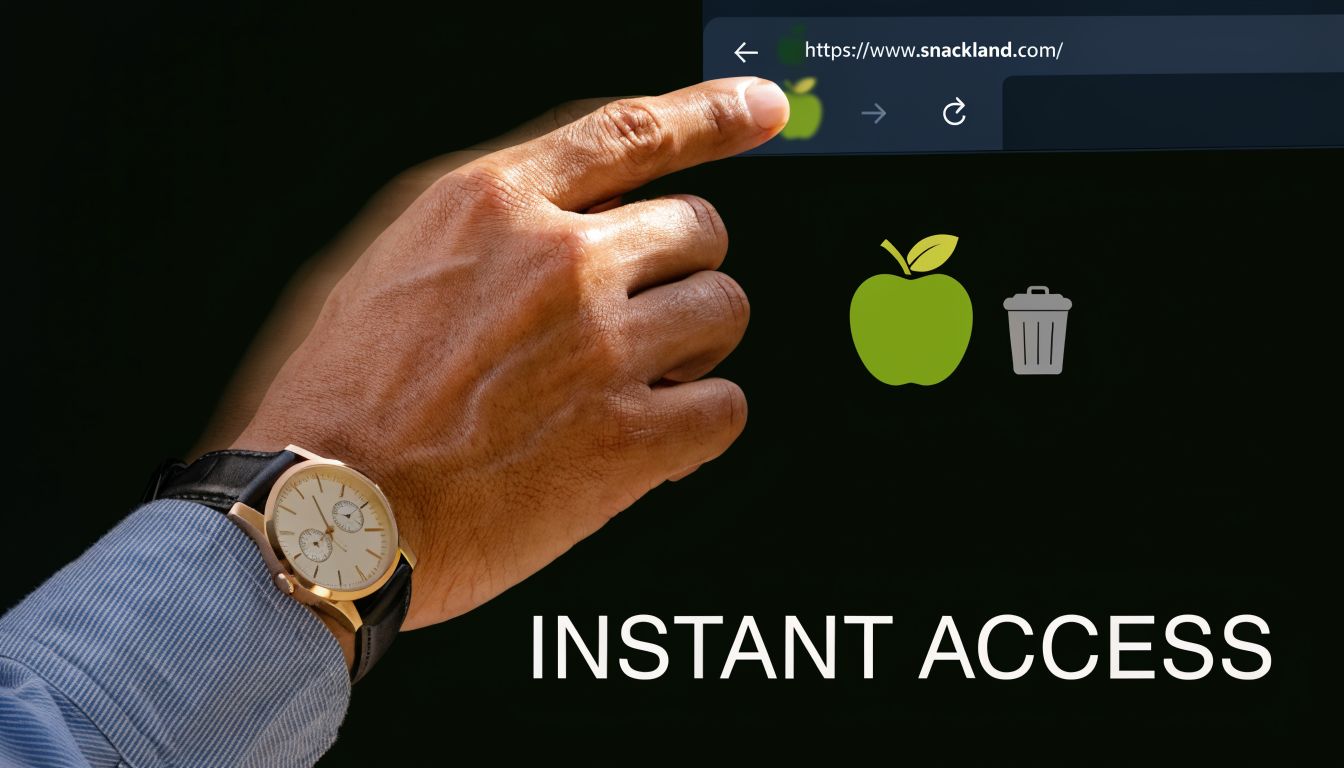
This works across Chrome, Edge, Safari, and Firefox. I use it as the default recommendation for new PMs because it avoids menu hunting and gets a working result in seconds.
The exact steps
- Open the website you return to throughout the day, such as Jira, Linear, Figma, Miro, Looker, or an internal dashboard.
- Resize the browser so part of the desktop is visible.
- Click and hold the padlock, site icon, or favicon next to the URL.
- Drag it to the desktop.
- Release.
The browser creates a shortcut that points back to that URL. On macOS with Safari, that file is usually a .webloc. In many other browser and OS combinations, it appears as a .url file. That matters if you share shortcuts across devices, because those formats do not always behave the same way.
Why this is the default move
This method is fast because it removes decision-making. No browser menus. No settings panel. No extra naming step unless you want one. For repeat-visit tools, that small reduction in friction helps people get into the work itself faster.
It also mirrors a product truth PMs should care about. When a user gives your app desktop real estate, they are signaling habit, trust, and expected return. That is a stronger behavior than a casual bookmark because the shortcut sits in the same visual field as Slack, docs, and the rest of the daily operating stack.
Use the drag-and-drop version when speed matters more than polish.
A few high-value use cases for PMs:
- Standup tools: Put Jira or Linear on the desktop so daily updates stay one click away.
- Design review: Keep Figma handy if you are reviewing mocks several times a day.
- Metrics review: Add Mixpanel, Amplitude, or your BI dashboard for faster check-ins between meetings.
- AI workflow: Save ChatGPT, Claude, or internal prompting tools so your first click goes to the work, not your inbox.
If you want faster access after the shortcut exists, Tooling Studio's taskbar pinning guide is a useful next step. And if you are deciding which apps deserve permanent placement, this list of product management tools worth keeping close at hand helps separate daily drivers from everything else.
Advanced Shortcuts for PM Power Users
A browser shortcut is fine for occasional access. A site-specific window is better for tools you touch ten or twenty times a day.
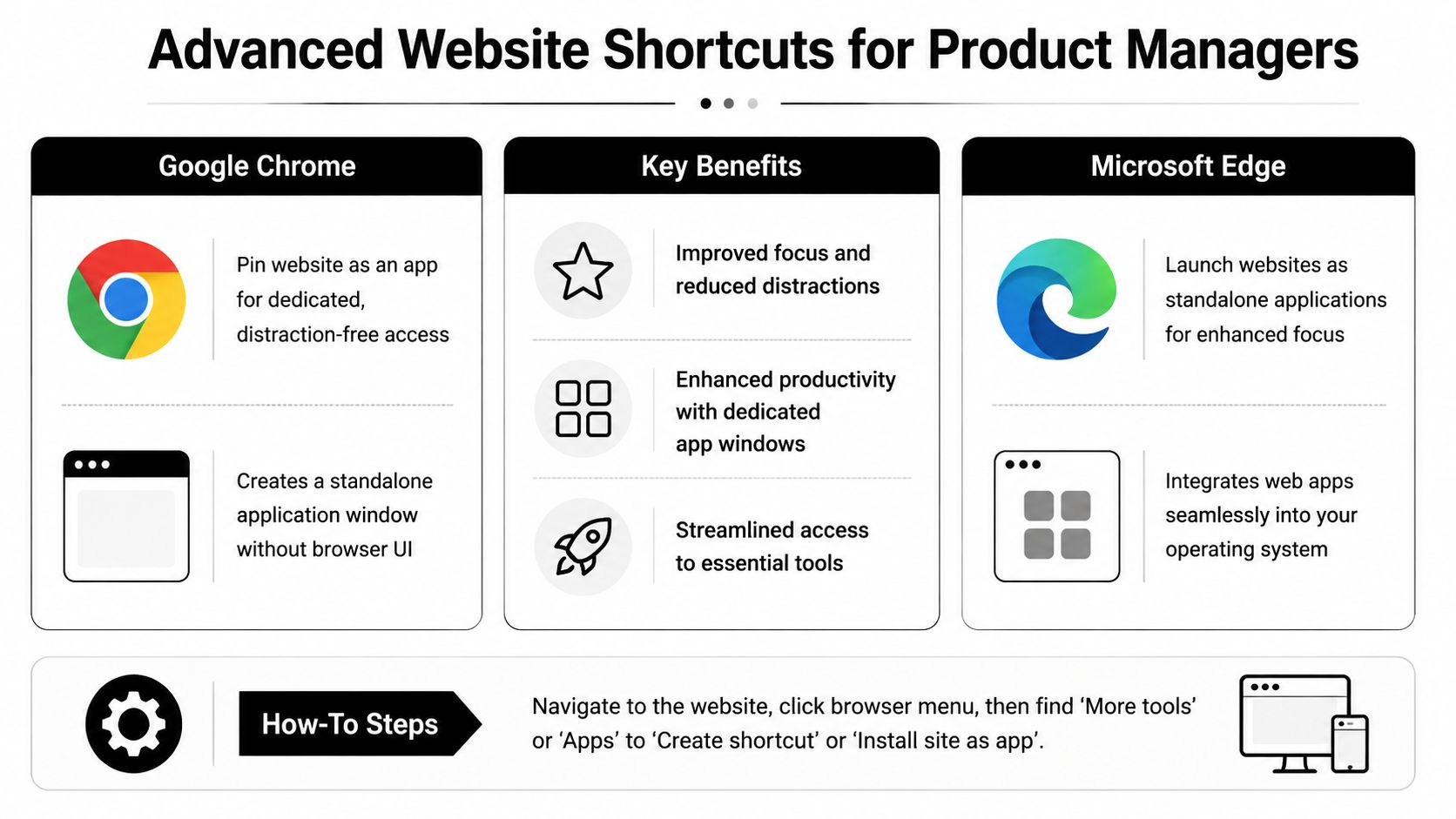
Chrome and Edge both let you create a shortcut that opens a site in its own window, with the tab bar and the rest of your browsing session out of the way. For product work, that changes more than aesthetics. It creates a clean container for one job, whether that job is checking activation in Amplitude, triaging a Jira board, or running prompts in an AI workspace.
Chrome versus Edge
The practical difference comes down to setup flow and how app-like the result feels.
| Browser | Best path | What you get |
|---|---|---|
| Chrome | Three-dot menu → More tools → Create shortcut | Optional Open as window setting for a standalone experience |
| Edge | App-style install flow from the browser menu | A site window that often feels more native to Windows |
Chrome is usually the faster choice if you want a dedicated window in under a minute. Edge tends to be stronger if you already use Microsoft 365 heavily and want web tools to sit closer to the rest of your desktop environment.
That trade-off matters. A PM stack is rarely one tool. It is Slack, docs, dashboards, tickets, and research all competing for attention. Giving one workflow its own window reduces tab hunting and makes it easier to return to the same task after meetings.
Where this helps most
Use app-style shortcuts for tools that benefit from visual separation, not just faster access:
- Analytics dashboards such as Amplitude, GA4, Mixpanel, or internal BI
- Roadmap and planning tools like Productboard, Jira, or Asana
- Research repositories in Notion, Confluence, or Airtable
- AI workspaces where you want a dedicated prompt-and-output surface
I would not do this for everything.
If every web app gets its own desktop presence, the shortcut stops being a productivity system and turns into clutter. The better rule is frequency plus consequence. If a tool is opened repeatedly and influences decisions, it earns a dedicated window. If it is useful but occasional, a normal bookmark is enough.
A dashboard you revisit all day should not compete with your general browsing session. Give it its own window.
The workflow difference that matters
A standard shortcut opens a site. An app-style shortcut assigns that site a place in your operating system.
That shift is small, but it has product implications. When users install or keep a web app in a dedicated window, they are showing stronger intent than someone who leaves the product buried in a tab group. For PMs, that is the same behavior you want to understand in your own product. Habit formation starts with repeated, low-friction entry points. That is part of the benefits of a responsive digital presence. The easier the experience is across contexts and devices, the more likely it becomes part of a daily workflow.
For AI-heavy product routines, this setup works well with browser-based copilots, experiment dashboards, and internal QA tools. If you are building a tighter operating cadence around those systems, this guide on automating repetitive PM workflows with AI tools pairs well with app-style shortcuts because both reduce cognitive overhead and help protect focus.
From Desktop to Home Screen with Mobile and PWA Shortcuts
Desktop shortcuts solve the office workflow. Home screen shortcuts solve the fact that product work doesn't stay at a desk.
A lot of PMs check dashboards, bug queues, release notes, and research clips from a phone or tablet between meetings. If a site is good enough to earn desktop real estate, it may deserve a home screen slot too.
How to add a website to your phone
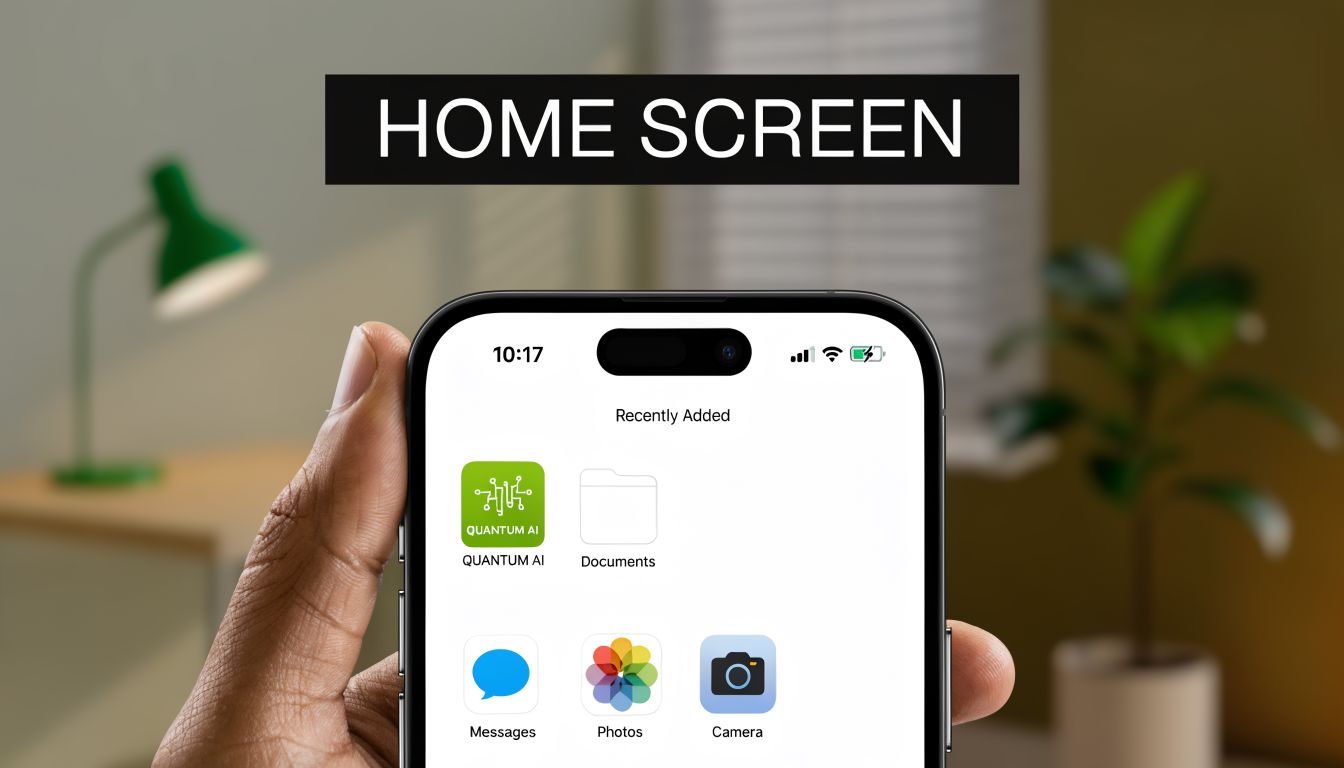
On iPhone or iPad:
- Open the site in Safari.
- Tap the share sheet.
- Choose Add to Home Screen.
- Rename it if needed, then save.
On Android:
- Open the site in Chrome.
- Tap the browser menu.
- Look for Add to Home screen or an install prompt if the site supports it.
- Confirm.
This is useful for web tools that aren't worth a native app install, or don't have one. Internal dashboards, incident status pages, hiring scorecards, and AI reference tools often fit this pattern.
Why this matters for product teams
There's a difference between “this product is useful” and “this product belongs on my home screen.” The second one signals habit.
It also pushes PMs toward a better product question: should this experience remain a simple bookmark, or should it behave more like an installable product? That's where Progressive Web Apps, or PWAs, enter the picture. A PWA is a web app that can feel much closer to a native app experience, including installability and a more persistent presence on the device.
If your product team wants repeat usage on mobile, don't stop at responsive pages. Think about whether the product deserves install-like behavior.
Good mobile shortcut adoption also depends on whether the experience is pleasant once the user opens it. That's why the broader discussion around the benefits of a responsive digital presence matters. A shortcut can only accelerate access. It can't rescue a cramped or poorly structured mobile interface.
A quick visual walkthrough helps here:
Where tablets fit for PMs
For many PMs, the most underrated device in this workflow is the tablet. Home screen web shortcuts on an iPad can turn a browser-based planning stack into something that feels much closer to a focused workbench, especially for note review, roadmap edits, and design feedback. If that's part of your setup, this perspective on why an iPad can be useful for work is worth reading.
The bigger product takeaway is straightforward. Desktop shortcuts reduce friction for repeat use. Mobile shortcuts and PWAs extend that same behavior into the rest of the day.
Shortcuts as a Product Engagement Signal
Many users treat shortcuts as a support topic. That's too narrow.
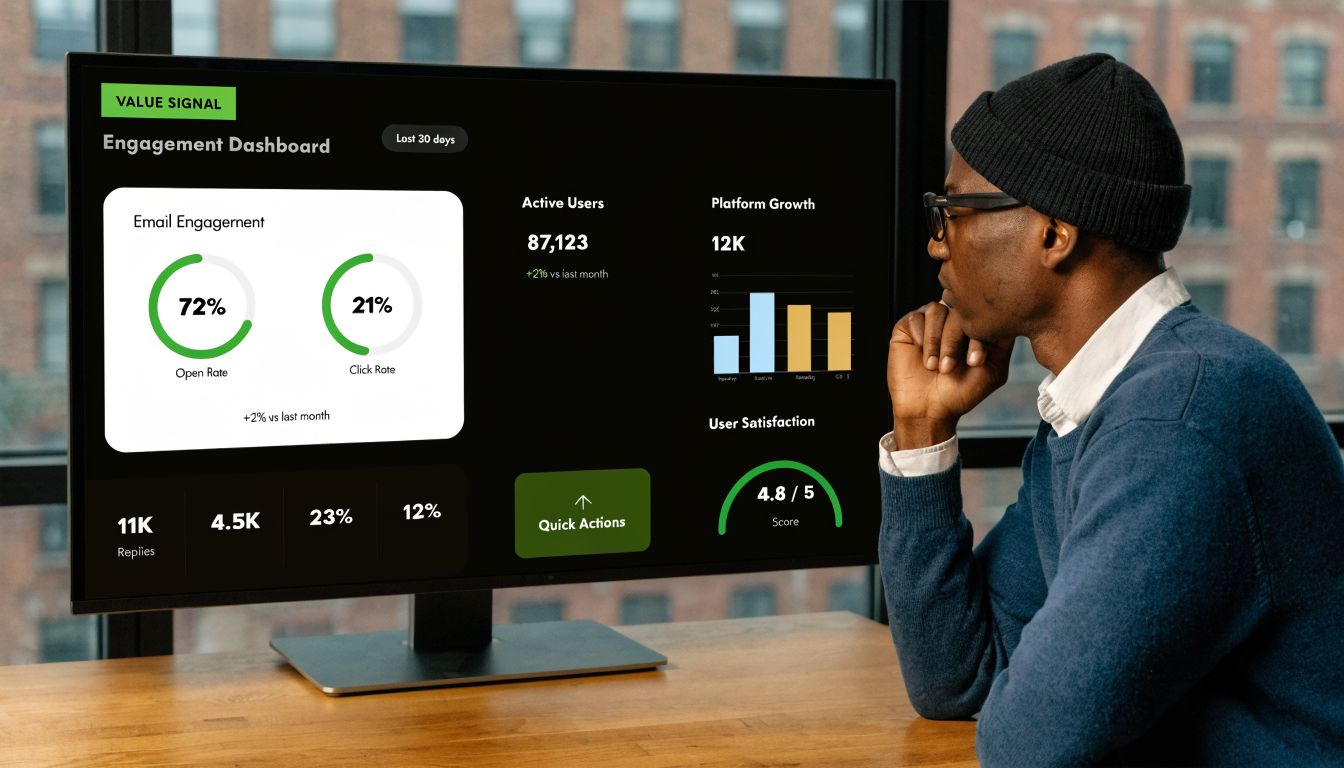
When a user puts your product on their desktop or home screen, they've crossed from casual usage into workflow integration. They're not just remembering your product exists. They're making it easier to return, often because they expect to use it repeatedly.
Why PMs should care
For product managers, understanding that a user has created a desktop shortcut to your product is a powerful engagement signal, suggesting frequent use and strong product-to-workflow integration. Typical how-to content ignores this completely and focuses only on mechanics.
That signal is often stronger than a bookmark. A bookmark says, “I may come back.” A shortcut says, “I expect to come back enough that one click matters.”
How to use this as a product lens
A practical framework:
- Habit signal: A shortcut usually reflects repeat intent. The product is no longer occasional.
- Workflow fit: The user sees your tool as part of a sequence, not a destination.
- Surface priority: You've earned one of the most limited interface slots a user controls.
- Prompt opportunity: If users benefit from frequent access, the product should make the action obvious.
Here are the product questions I'd ask:
| Question | Why it matters |
|---|---|
| Do power users behave differently after installation or shortcut creation? | It helps identify stronger retention patterns qualitatively |
| Which use cases justify an “Add to Desktop” or “Add to Home Screen” prompt? | Not every workflow deserves the interruption |
| Is the shortcut experience better on desktop, mobile, or both? | User segments often differ by operating context |
| Are we designing for repeat entry? | Habit products should reduce return friction aggressively |
Design patterns worth testing
The best prompt is contextual. Don't ask everyone on first visit.
Instead, consider prompting after behaviors like:
- repeated usage of the same workspace
- frequent return to a dashboard
- sustained use of an internal tool by a team lead
- repeated mobile access to the same reporting view
A shortcut prompt should appear when the user already acts like the product belongs in their routine.
If you're thinking about activation and retention more broadly, this guide on how to increase monthly active users complements the shortcut lens well. Shortcut creation won't replace core product metrics, but it can sharpen how you identify committed usage.
A final strategic point: if your product can support install-like behavior but never encourages it, you're leaving a high-intent action to chance. PMs spend a lot of time optimizing onboarding copy, empty states, and notifications. Shortcut creation belongs in that same family of behavior design.
Security Risks and Troubleshooting Common Failures
A shortcut usually gets created in seconds. The failures happen later, when someone clicks it during a meeting, on a shared machine, or after a browser setting changed and nobody knows why the link opens the wrong way.
That is why I treat desktop shortcuts as both a productivity aid and a small piece of product behavior design. If a team keeps creating shortcuts to the same workspace, dashboard, or internal tool, that signals repeat intent. It also creates support and security work you need to handle cleanly.
The failures I see most often
The first category is method mismatch. People mix old Windows habits with current browser behavior and expect the same result. A raw URL pasted into a desktop shortcut can behave differently from a shortcut created from the browser itself, especially if the default browser, profile, or app settings have changed.
The second category is environment friction. Full-screen windows hide the desktop, corporate policies block drag-and-drop, or the browser strips the icon behavior people expect from older tutorials. The result looks random to the user, but the failure usually comes from the setup, not the website.
Edge and Chrome add one more layer. Both can create app-style experiences for some sites, which is useful for tools you open all day, but confusing if the user only wanted a basic desktop link.
A quick troubleshooting checklist
If a shortcut fails, check these in order:
- Confirm how it was created. Browser-created shortcuts usually behave more predictably than manually typed desktop shortcuts.
- Make the desktop visible. Drag-and-drop fails if the user cannot reach the desktop while holding the site icon.
- Check the default browser. The shortcut may work fine but open in a browser or profile the user did not expect.
- Open the site directly first. If the page is broken, expired, or behind a changed login flow, the shortcut is not the root problem.
- Recreate it from scratch. Repairing a bad shortcut often takes longer than making a fresh one.
For PM teams, this matters because every failure adds friction to a repeated workflow. If a sales lead opens CRM reporting ten times a day, or an ops manager checks a dashboard at shift change, a broken shortcut becomes a recurring productivity tax.
The security risk many teams miss
Desktop shortcuts are simple files. Simple files are easy to inspect, copy, sync, and expose.
That matters if the URL contains sensitive paths, internal subdomains, query parameters, or tokens. A shortcut to public product docs is low risk. A shortcut to an admin panel, finance tool, support console, or customer data view is different. On a shared or visible desktop, that file can reveal more than the creator intended.
I would avoid desktop shortcuts for high-risk destinations unless your IT and security policies clearly allow them.
Safer alternatives often work better anyway:
- Browser profiles for separating work and personal sessions
- PWA or app-style installs for tools used all day
- SSO-managed access patterns for internal systems with tighter controls
Teams working with AI tools, customer data, or internal analytics should be stricter here. The attack surface is not only the app itself but also the way people enter it. This overview of AI cybersecurity threats is a useful reference if your PM work overlaps with access control and sensitive data handling.
The same principle applies to cross-device entry points. If a field team jumps into workflows through QR codes, you need visibility into how those links are used and where they lead. Tools that help you monitor your QR scan data support that operational discipline.
A practical policy for PM teams
If I were setting a team standard, I would keep it simple:
| Site type | Shortcut recommendation |
|---|---|
| Public docs, roadmaps, design boards | Usually acceptable |
| Analytics dashboards with non-sensitive views | Acceptable with judgment |
| Internal admin panels | Avoid unless approved |
| Email, banking, identity tools | Do not place on shared or visible desktops |
| Sensitive enterprise systems | Prefer profile-based or managed access |
Convenience matters. Governance does too.
Good PMs do not treat shortcut creation as a throwaway tech tip. It is a small workflow decision that affects speed, repeat usage, support burden, and security exposure all at once.
