Your inbox is telling people what kind of PM you are, even when you're not replying.
If your auto reply outlook setup is vague, late, or missing, stakeholders fill in the gaps themselves. Engineering assumes you're ignoring a blocker. Sales thinks product is unresponsive. Leadership reroutes around you. The issue isn't the email feature. It's expectation management.
Strong PMs treat auto-replies as part of their operating system. They use them to protect deep work, route urgent decisions, reduce unnecessary back-and-forth, and make their availability legible to the people who depend on them. That's a leadership skill, not admin work.
Why Your Auto-Reply Is a Strategic PM Tool
Most PMs first think about auto replies when they're taking vacation. That's too narrow. In practice, the feature is useful any time you need to shape inbound communication instead of reacting to it.
That includes launch weeks, roadmap planning, customer visits, hiring loops, strategy offsites, and even a half-day block for focused writing. A good auto-reply doesn't just announce absence. It tells people what to do next.

Microsoft's automatic replies feature has been around for longer than is often realized. It first debuted in Outlook 2000, and by Outlook 2003 it added time-bound scheduling and internal versus external differentiation, addressing feedback from over 70% of enterprise users who reported manual out-of-office management as a top pain point in a 2002 Gartner survey. Microsoft notes that the feature later became foundational at scale, supporting a platform used by 1.2 billion Outlook users today through the evolution of Exchange and Microsoft 365, as described in Microsoft's Outlook automatic replies documentation.
That history matters because it mirrors the modern PM job. Work is increasingly asynchronous. More communication happens across time zones, functions, and overlapping priorities. The PM who can signal clear boundaries without creating confusion has a real advantage.
What your message is actually doing
A strong auto-reply handles four jobs at once:
- Clarifies availability so people know whether to wait, escalate, or reroute
- Protects focus time by reducing low-value follow-ups
- Shows operational maturity because you've anticipated dependency risk
- Creates a communication standard that others on the team often start to adopt
Practical rule: If your absence will affect decisions, timelines, or stakeholder confidence, it deserves an intentional reply message.
This is the same discipline behind a good stakeholder communication plan template. The tool is simpler, but the leadership principle is identical. Tell people what's happening, what changes, who owns what, and how to proceed.
The Core Workflow for Setting Automatic Replies
You don't need a complicated setup. You need a repeatable one that works across desktop, web, and mobile. For most PMs, the right habit is simple: set the message the moment you know you'll be partially or fully unavailable, then verify the timing and audience before you close the settings window.
New Outlook on Windows and Mac
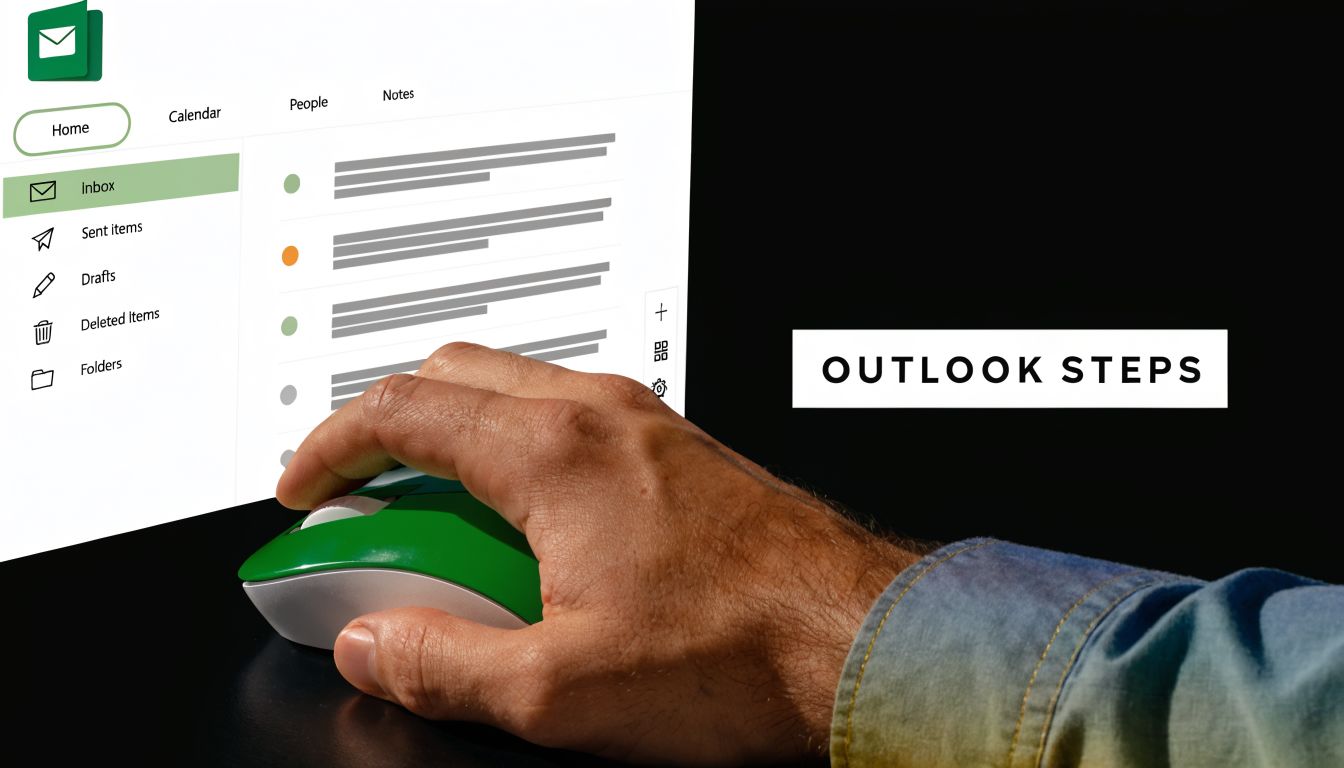
If you're using the newer Outlook experience, go to Settings, then Accounts, then Automatic Replies. Turn replies on, write your internal message, decide whether external senders should get a separate version, and set a start and end time if needed.
Use this version when you want clean scheduling and don't want to remember to turn the message off manually. That's especially useful for conferences or planned PTO.
A practical setup for PMs looks like this:
- Turn on scheduled replies if your absence has a defined end time.
- Write a separate internal note for coworkers who may need escalation paths.
- Keep the external note tighter so vendors, candidates, or customers don't get unnecessary internal detail.
- Double-check the time zone before saving.
Classic Outlook desktop
In classic Outlook, the common path is File, then Automatic Replies. From there, enable replies, set the time range if needed, and create separate internal and external messages.
Classic Outlook is still common in large companies, so it's worth knowing the path by memory. If you're in a hurry before boarding a flight or walking into an offsite, this is the quickest route from the desktop client.
One useful walkthrough is embedded below if you want a visual refresher before setting it up in your own account.
Outlook on the web and mobile
For Outlook on the web, open Settings, search for Automatic Replies, and configure the same fields. This is the safest option when you're on a borrowed machine or working across devices.
For the mobile app on iOS or Android, open the account settings inside Outlook and look for Automatic Replies. Mobile is best for quick edits, emergency activation, or correcting a bad message after you've already stepped away from your laptop.
Use web or desktop for initial setup. Use mobile for rescue work.
A fast PM checklist
| Check | Why it matters |
|---|---|
| Dates are correct | Wrong timing creates confusion fast |
| Internal and external copies differ | Different audiences need different context |
| Backup contact is named | Senders need a next step, not just a notice |
| Urgent path is explicit | Critical issues shouldn't sit in your inbox |
If you can set this up in under a minute, you're much more likely to use it for strategic focus blocks, not just vacations.
Auto-Reply or Inbox Rule A PMs Decision Framework
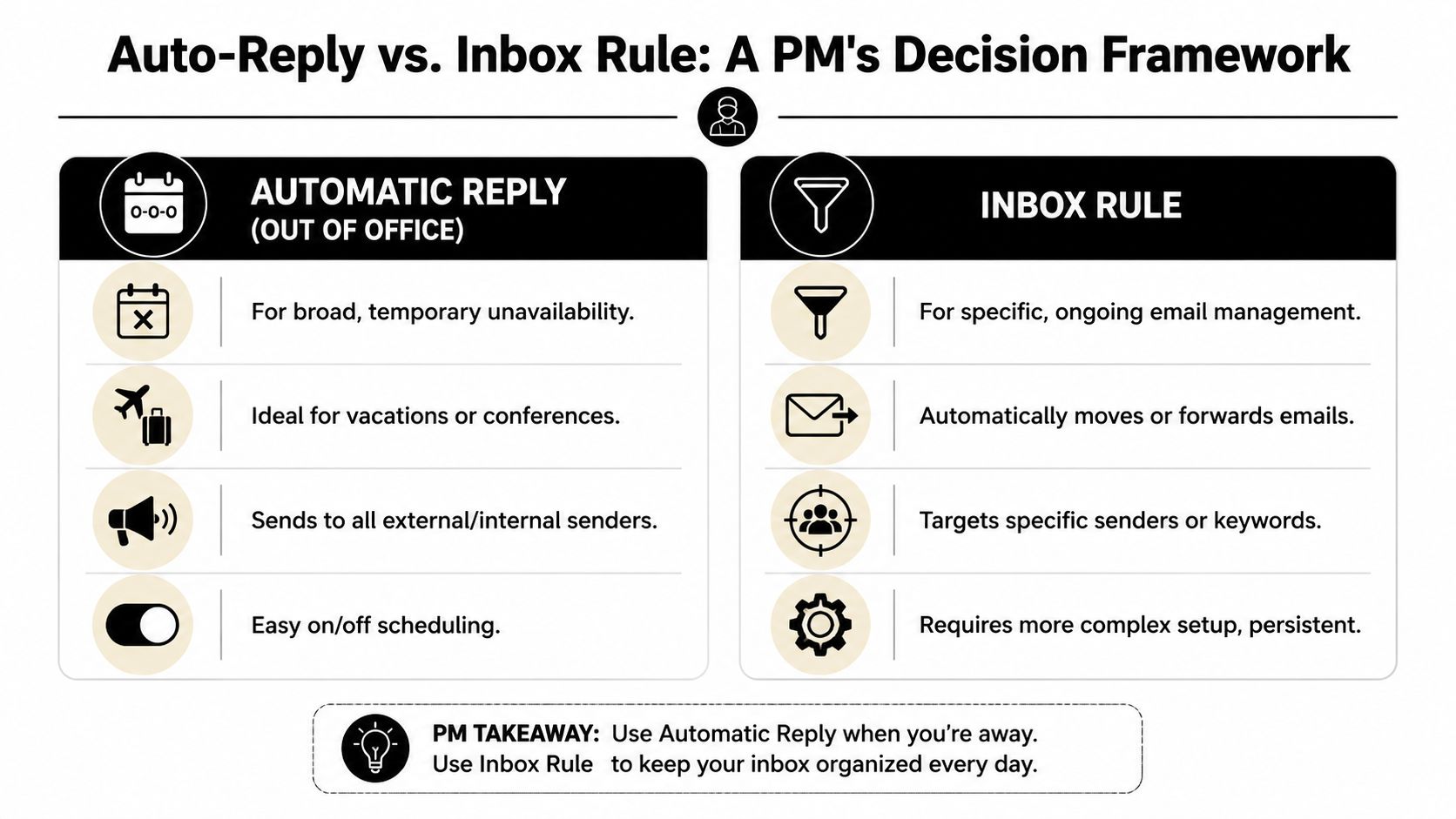
Most PMs misuse auto-replies because they apply one tool to two different problems. Sometimes you need a broad signal of unavailability. Other times you need silent triage.
That's the difference between automatic replies and inbox rules. One is a broadcast. The other is a filter.
When automatic reply is the right move
Use automatic reply when your availability has materially changed and people need to know that immediately. This is the right choice for PTO, conferences, interview loops, travel days, and high-focus blocks where you won't be responsive in your normal pattern.
There's a measurable effect here. Aggregated Microsoft 365 telemetry from 2022 to 2025 shows that enabled out-of-office settings correlate to a 25-35% drop in inbox volume, and a 2023 Admindroid analysis found an 18% reduction in incoming mail post-activation. That makes automatic replies more than etiquette. They actively reduce communication overhead, as summarized in Admindroid's Microsoft 365 email activity reporting guide.
When inbox rules are the better tool
Use an inbox rule when you are available, but you don't want every message to compete for attention in real time.
Examples PMs run into every week:
- Jira or incident notifications that should go to a folder, not your main inbox
- Customer feedback aliases that need categorization before review
- FYI threads from legal, finance, or marketing that matter, but not now
- Newsletter and vendor traffic that you want batched for later
Rules work best when the problem is prioritization. Auto-replies work best when the problem is expectation-setting.
A simple decision lens
Ask yourself three questions:
- Has my responsiveness changed? If yes, use auto reply.
- Do only certain senders or keywords matter here? If yes, use a rule.
- Do I want people to take action elsewhere? If yes, auto reply usually belongs in the system.
If people need to know you're unavailable, send a message. If only you need a cleaner inbox, use a rule.
For PMs, the strongest setup is often both. Set a temporary auto-reply for stakeholders, then use rules underneath to route low-value traffic out of the way. That's the same kind of layered thinking behind strong decision-making frameworks. You separate the user-facing signal from the back-end operating logic.
Crafting High-Impact Auto-Replies PM Templates
The best PM auto-replies don't sound robotic. They sound calm, specific, and easy to act on. They answer the sender's next question before the sender has to ask it.
Below are templates worth keeping in your own notes app or text expander.
The deep work reply
Use this when you're not out of office, but you are deliberately unavailable for a meaningful block.
Hi, I'm heads down on sprint planning and spec work today, so my email responses will be delayed.
If this is time-sensitive for the current release, please message me on Teams and include the specific decision needed.
If it can wait, I'll respond when I'm back in active email review.
Why this works: it doesn't pretend you're gone. It defines a slower response window and gives a clear escalation path. That protects focus without sounding evasive.
The conference attendee reply
Use this when your day is fragmented and your attention is limited.
Hi, I'm attending an industry conference and will be slower on email than usual.
For product decisions tied to this week's roadmap or launch work, please contact [name/team].
For anything non-urgent, I'll reply after I return.
This version signals professionalism because it implies continuity. The message isn't “I'm unavailable.” It's “the work still has coverage.”
The vacation reply
This one should be clean and firm.
Hi, I'm out of office and not monitoring email.
For urgent product matters, please contact [name] at [team/contact method].
For everything else, I'll reply after I'm back.
A lot of PMs weaken this template by adding “I may check occasionally.” Don't do that unless you plan to respond. Mixed signals create more follow-up, not less.
The parental leave reply
This one needs clarity and confidence.
Hi, I'm on parental leave and won't be responding to email during this period.
For product area questions, please contact [name]. For roadmap or stakeholder escalations, please contact [name/team].
Thanks for your understanding.
The key is explicit delegation. People should know exactly where to go, especially if your leave spans major planning cycles.
A writing pattern that usually works
A durable PM auto-reply usually includes these parts:
- Current status with plain language
- Response expectation so senders know timing
- Escalation path for urgent matters
- Backup owner when work must continue
If you want more examples outside PM-specific cases, it's worth browsing these auto-reply email templates for sales teams from ReachInbox. Sales teams are often very good at writing concise handoff language, and that style transfers well to stakeholder-heavy product roles.
You can save your best versions in your personal product management template library alongside launch docs, PRD snippets, and meeting agendas. That's a small habit, but it turns a reactive chore into a repeatable communication asset.
Managing Replies for Product Teams and Shared Inboxes
Once you're leading a product area, you're often responsible for more than your personal mailbox. Shared inboxes like product@, feedback@, or partnerships@ need replies that reflect team coverage, not individual availability.
That changes the standard.
What's different in a shared inbox
A personal auto-reply can say, “I'm away.” A shared inbox reply can't create ambiguity about whether the team is still operating.
The message needs to answer three things clearly:
- Who owns this inbox right now
- What response the sender should expect
- Where urgent issues should go
If you have mailbox permissions, configure the shared reply in the mailbox settings available to your organization's Outlook or Exchange environment. If you don't, pull in IT or the mailbox owner early rather than assuming your personal rules will cover it correctly.
Shared inboxes fail when everyone assumes someone else is watching them.
A simple operating model
Use this process for any product team alias:
- Assign a directly responsible owner for the period in question. Not a group. A name.
- Draft one team-safe message that doesn't mention internal confusion or temporary gaps.
- Document escalation paths for bugs, customer issues, and partner requests separately.
- Test with a real send from an internal account and, if appropriate, an external account.
- Post the coverage plan in Slack, Teams, or your team workspace so nobody is surprised.
Here's a straightforward shared mailbox reply:
Thanks for contacting the Product Team. This inbox is being monitored, but response times may be slower than usual today.
For urgent production issues, please contact the on-call support path.
For roadmap questions or partnership requests, we'll route your note to the appropriate owner.
The leadership lesson
Senior PMs are expected to create continuity, not just manage their own workload. That's why shared inbox handling matters. It's operational hygiene, but it also signals whether you can run a cross-functional surface area with clear ownership.
If this kind of coordination is still messy on your team, sharpen the broader system with stronger cross-functional team management habits. The inbox usually reflects the org design behind it.
Troubleshooting and AI-Powered Reply Automation
When auto reply outlook doesn't behave the way you expect, the issue is usually simple. The hard part is knowing where to look first.

Common problems and direct fixes
Replies aren't sending externally
Check whether external automatic replies are enabled and whether your organization restricts them. Many teams write the internal note and forget to activate the external one.
The wrong people are getting the message
Review whether you selected contacts-only versus all external senders, and confirm you're editing the correct account if you manage multiple mailboxes.
A rule is interfering with your setup
If emails are being forwarded, moved, or categorized in odd ways, look at server-side and client-side rules. A messy rule stack can make troubleshooting feel random.
Mobile changes didn't stick
If you updated from the phone in a rush, reopen the desktop or web version and verify the saved message and timing. Mobile is great for quick edits, but it's not where I'd trust a first-pass setup before a long absence.
Keep one default reply saved in your notes. When Outlook is glitchy, drafting from scratch is the last thing you need.
Using AI without sounding generic
AI is useful here if you use it to sharpen context, not produce bland corporate filler. You can ask ChatGPT or Microsoft Copilot to generate a message customized for your role, audience, and escalation path.
Try this prompt:
Write a professional Outlook auto-reply for a product manager. I'll be unavailable from [time period]. My audience includes internal stakeholders, external partners, and cross-functional teammates. The tone should be concise, clear, and calm. Include a backup contact for urgent roadmap issues, a separate path for production incidents, and avoid sounding overly formal or apologetic.
If you want broader ideas on using AI to reduce repetitive email work, Ellie has a useful inbox autopilot guide that can help you think through the trade-offs.
Automation that's actually worth doing
For recurring patterns, Microsoft Power Automate can help. One practical use case is scheduled replies for recurring focus periods, such as a standing strategy block or writing block. Another is conditional logic tied to mailbox states and workflows in Microsoft 365.
Microsoft's documentation notes that the current automatic replies action in Microsoft 365 supports expressions such as AddHours(UTCNow(), 168) in Power Automate flows, which makes recurring scheduling possible inside a more advanced workflow environment. If that kind of orchestration interests you, it pairs well with broader workflow thinking in AI workflow automations with n8n.
The key is restraint. Automate recurring patterns. Don't automate judgment. Your message still needs to sound like a responsible PM who knows what the sender needs next.
If you want more tactical PM systems like this, from stakeholder communication to operating cadence and AI workflows, Aakash Gupta is one of the best resources to keep in your regular reading rotation.
