You're probably here because of a very specific moment. An engineer shares a path to a config file, a dataset sample, or a log folder on Windows, and you realize you can't quickly inspect it without clicking through a maze of folders. Or you're on a call, someone says “just open it from cmd,” and you'd like to do that without turning the moment into a tutorial for yourself.
That skill matters more than it sounds. Knowing how to open files in CMD isn't about pretending to be an engineer. It's about reducing friction, checking things yourself, and operating comfortably in the same environment your technical team uses. For PMs working in data products, internal tools, AI workflows, or model evaluation setups, that fluency pays off fast.
Why a PM Should Care About the Command Line
A PM doesn't need to become a full-time terminal user. But basic command-line literacy changes the way you work with engineers, analysts, and ML teams.

Technical fluency builds credibility
If you can open a folder, inspect a text file, and search for a missing artifact without asking someone to screenshare, people notice. You ask sharper questions. You debug process issues faster. You stop treating the engineering environment like a black box.
That matters even more in AI product work. Prompt libraries, evaluation outputs, CSV exports, markdown notes, config files, and logs often live in file structures that engineers already access from the terminal. If you can meet them there, you shorten the gap between product intent and implementation reality.
One reason CMD still matters is durability. The basic file-opening and file-listing model in Command Prompt has persisted across at least three major Windows generations for more than 20 years, which makes it a stable administrative pattern rather than a passing trick, as reflected in Dell's Command Prompt guidance.
Practical rule: Learn the few commands that help you inspect reality. You don't need the whole shell.
It's a leverage skill, not a hobby
Most PMs spend too much time waiting for small technical verifications. Is the right file in the folder? Did the export run? Which text file is the latest version? Can I open the spec from here without digging through Explorer?
CMD helps with exactly those moments. It's also a strong stepping stone into more modern terminal-based workflows, including AI agent tools and local automation. If you want a broader view of how technical PMs use AI-native tooling in real work, this breakdown of how an OpenAI PM uses Codex and image generation is worth reading.
A good PM doesn't need to know everything. A good PM should be able to verify enough to move work forward.
The Core Methods for Opening Files from CMD
The simplest way to open a file from CMD is still the best one. Go to the right folder, then open the file from that context.
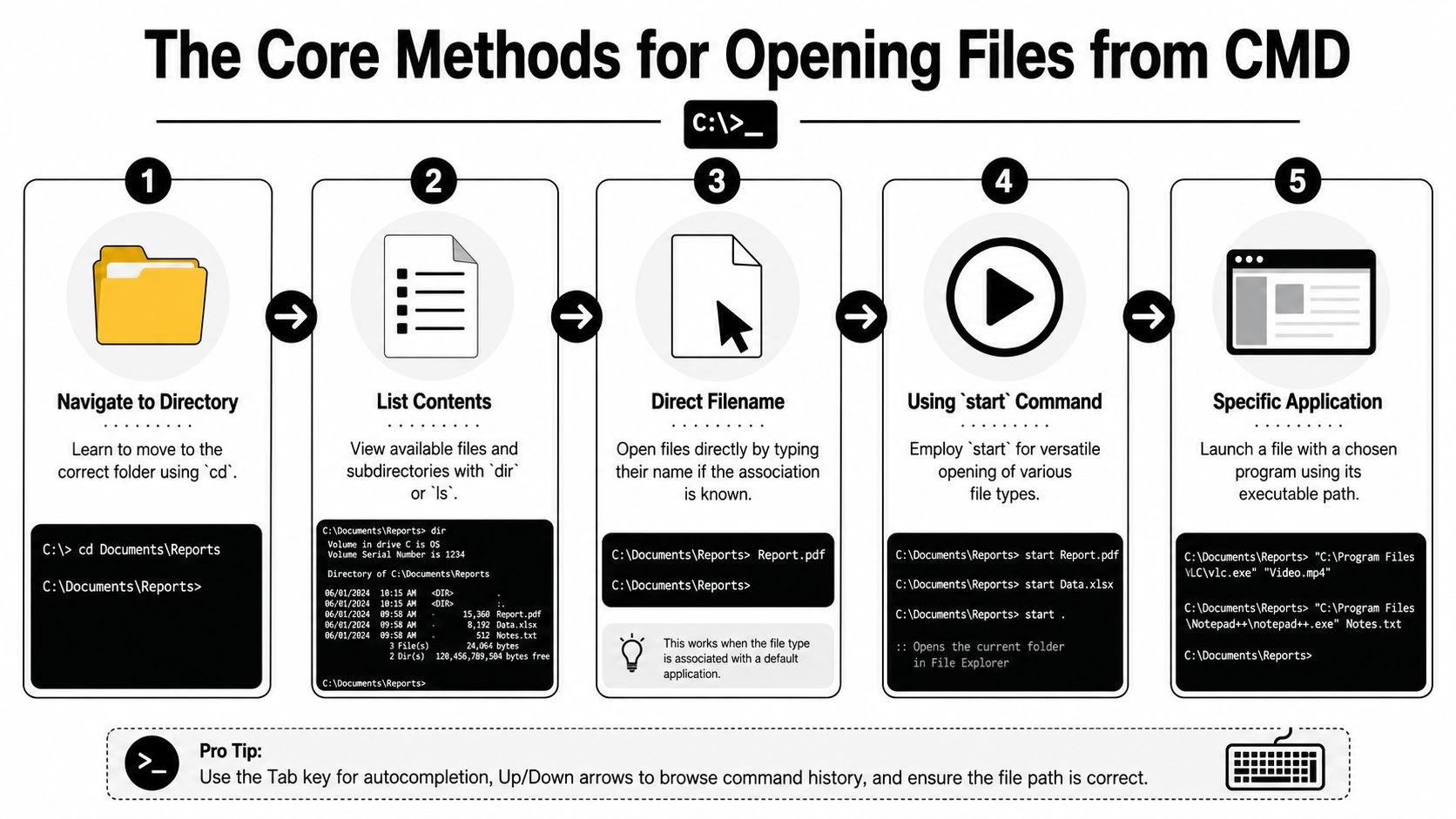
Method one with cd and the filename
If you already know the folder, use this pattern:
- Open Command Prompt.
- Move into the target folder.
- Run the file name.
Example:
cd "C:pathtofolder"
Then:
notes.txt
Or, if you want to force a specific app:
notepad notes.txt
This works because CMD resolves the current working directory before launching the default handler, which is documented in Iowa State's shell basics guide.
For PM work, this is the fastest path when someone sends you a folder path in Slack or Teams and says, “the file is in there.”
Method two with start
The start command is the practical workhorse. It's useful when you want CMD to hand the file off to Windows and open it with the associated application.
Examples:
start roadmap.xlsxstart draft-spec.docxstart .start figma.com
That last pattern is why PMs should remember start. It doesn't just open files. It can also open folders and websites from the same window where you're already working. That makes it good for lightweight personal automation.
Here's a short walkthrough if you prefer seeing the flow first.
Method three with explorer .
This is the bridge between terminal and GUI:
explorer .
The dot means “current folder.” So if you're currently in a useful location in CMD and want to jump into the visual file browser, this opens that exact location in Windows File Explorer.
If you're command-line curious but still prefer visual confirmation,
explorer .is the cleanest handoff.
That's especially useful when you're validating a folder before sharing it with design, data, or QA.
A PM-friendly sequence that works
When someone gives you a path, use this sequence:
- Open CMD quickly: Use Windows Run or launch Command Prompt normally.
- Change directory with quotes:
cd "C:Project FilesStaging Export" - List contents:
dir - Open what you need: type the filename directly, or use
start filename.ext - Switch to Explorer if useful:
explorer .
That's the practical core of how to open files in CMD. You don't need much more for daily work.
Viewing and Editing Text Files Directly in Terminal
A lot of PM-relevant files are plain text. README files, logs, JSON snippets, CSV exports, feature flags, and lightweight config files all show up in real product work.
Use CMD to inspect before you open
When you only need a quick check, opening a full app is slower than just reading the file in terminal.
Useful commands:
- Show the full contents:
type filename.txt - Paginate a larger file:
more filename.txt - Open for quick edits:
notepad filename.txt
If you're in a logs folder and trying to inspect what's available first, filtering helps. UCLA's command-line example shows that dir *.txt /a-d /b can narrow a directory down to just one file type, which is a practical way to isolate the text files you want to review in their file listing examples.
Where this helps PMs most
I've seen PMs gain a lot of speed from three narrow use cases:
- Checking a config file: You want to confirm a flag name or environment-specific value.
- Reviewing a dataset sample: You need to see whether a CSV or TXT export has the columns or records you expect.
- Scanning a log file: You're looking for a visible error string or timestamp pattern before escalating.
Open the file in terminal first when your goal is verification, not editing.
If you're building more technical comfort, this guide on cloud code for PMs pairs well with these habits because it trains the same muscle: staying calm inside technical tooling long enough to get answers yourself.
One caveat: CMD is fine for quick inspection. It's not the best place to do serious editing. Once you've confirmed the right file, open it in Notepad or your preferred editor and continue there.
Mastering Paths and Finding Files Like an Engineer
Most frustration with CMD has nothing to do with opening files. It comes from paths.
Quotes fix a lot of problems
If a folder name contains spaces, wrap the path in double quotes.
Use:
cd "C:UsersNameProject FilesQ4 Review"
Not:
cd C:UsersNameProject FilesQ4 Review
That one habit prevents a huge share of beginner errors. It's also the difference between looking fluent and looking stuck when you're pairing with engineering.
Relative paths versus absolute paths
An absolute path starts from the full location on disk. A relative path starts from where you are now.
Examples:
- Absolute:
C:UsersNameDocumentsspec.txt - Relative:
.spec.txt
The relative form is useful when you've already changed into the right project folder. That's often the fastest approach in shared environments.
A strong shortcut here is opening Command Prompt directly in the folder you care about. In File Explorer, click the address bar, type cmd, and press Enter. That launches CMD in the current folder context, which is one of the cleanest workflow improvements for troubleshooting and admin work. If you want another simple terminal habit, this walkthrough on creating directories from terminal is a good companion skill.
Search when you only know part of the file name
At this stage, PMs start to look a lot more technical than they feel.
If you don't know exactly where a file is, use recursive search:
dir secret* /s /p
The pattern can be any partial name. The /s flag searches through subfolders, and /p paginates output. That recursive search pattern is documented in Dummies' DOS prompt search guide.
Use cases:
- Lost product spec: You remember the file starts with “pricing”.
- Export hunt: You know the report ends in
.csv. - Model artifact check: You only know part of the generated filename.
Engineers don't memorize every path. They search fast. That's the habit worth copying.
When you combine quoted paths, current-folder CMD launching, and recursive search, CMD becomes far less intimidating. It starts acting like a practical navigation tool instead of a test.
Custom Workflows and Advanced PM Techniques
Once the basics are solid, CMD becomes useful for reducing repeated clicks. That's the point where PMs stop using it occasionally and start realizing its full potential.
Build a simple start-of-day script
A batch file is just a text file that ends in .bat and runs commands in sequence. For a PM, that means one click can open the tools and folders you use every morning.
A simple start-day.bat might contain:
start https://your-jira-boardstart https://your-figma-filestart "C:YourProjectSpecs"start "C:YourProjectExports"
Save it, double-click it, and Windows will open each target with the relevant app or browser.
If you're moving further into workflow design, this practical guide to building AI workflow automations in n8n is the next logical step. The mindset is the same. Reduce repeated manual steps. Keep humans focused on judgment.
Handle messy filenames safely
Real-world file names are messy. They include spaces, percent signs, and names that can be mistaken for options.
That's why safe path handling matters. As noted in David Wheeler's essay on opening files and URLs safely, filenames with spaces or special characters like % can break commands if you don't quote or escape them correctly.
Practical habits:
- Quote paths with spaces:
start "C:Team Folderrelease notes.txt" - Be careful with
%: filenames containing percent signs can be interpreted unexpectedly - Watch leading symbols: names that look like flags or options can confuse command handling
Key CMD commands for Product Managers
| Command | Syntax Example | PM Use Case |
|---|---|---|
cd |
cd "C:ProjectSpecs" |
Move into the working folder before opening or checking files |
dir |
dir |
See what files are available in the current folder |
dir with filter |
dir *.txt /a-d /b |
Isolate text files such as notes, logs, or config files |
start |
start roadmap.xlsx |
Open a file with its default Windows app |
notepad |
notepad feature-flags.txt |
Make a quick edit to a simple text file |
type |
type readme.txt |
Read a small text file directly in CMD |
more |
more large-log.txt |
Read a longer file one screen at a time |
explorer . |
explorer . |
Open the current CMD folder in File Explorer |
dir recursive search |
dir pricing* /s /p |
Find a misplaced file when you only know part of its name |
You don't need a giant command set. You need a compact one that matches your work.
Integrating the Command Line into Your PM Toolkit
The career value here is straightforward. A PM who can operate comfortably in CMD can verify file-level details faster, collaborate more smoothly with engineering, and automate small pieces of repetitive work without waiting for help.
That doesn't make you an engineer. It makes you a stronger product operator.
The easiest habit to adopt is also one of the best: in File Explorer, go to a folder, type cmd in the address bar, and open Command Prompt right there. That folder-context launch is a meaningful workflow improvement for troubleshooting and file handling, especially when the environment matters, as shown in this video walkthrough on opening CMD from the current folder.
For PMs who want a broader technical foundation, this collection of technology skills for product managers is a useful next step.
Your challenge for the next 48 hours is simple:
- Open a real project folder with
cmdfrom File Explorer - Use
dirto inspect the contents - Open one file from CMD
- Create a small
.batfile that opens two work tools you use every day
That's enough to turn this from trivia into a working skill.
Aakash Gupta has built one of the most useful bodies of work for PMs who want to sharpen both strategy and execution. If you want practical guidance on product leadership, career growth, AI, and technical fluency, explore Aakash Gupta.
