You're probably here because a simple setup task turned into a dependency on engineering. You wanted a clean folder structure for an AI feature experiment, a quick prototype, or a shared workspace for specs and sample data. Instead, you got stuck toggling between Finder, File Explorer, Slack, and someone else's calendar.
That's exactly why PMs should care about the terminal. Not because you need to become an engineer, but because basic command-line fluency removes low-value blockers. If you can create directory terminal workflows yourself, you move faster, ask better questions, and look more credible when discussing environments, scripts, and reproducible setups with your developers.
Why a PM Needs to Master the Terminal
The command line isn't a developer vanity tool. It's a practical interface for doing repeatable work quickly. The mkdir command is one of the oldest and most widely used filesystem commands across Unix, DOS, Windows, and related environments, which is why it keeps showing up in everyday workflows and scripts, as noted in this mkdir overview.
For PMs, that matters because product work increasingly touches technical systems. You may not write production code, but you will touch project scaffolding, local test environments, AI experiment folders, onboarding docs, and collaboration handoffs. If you can create the right structure in seconds, you avoid becoming the person who always needs help with setup.
What terminal literacy changes
A PM who understands basic terminal commands usually gets better at three things:
- Faster prototyping: You can spin up a clean workspace for a feature concept, evaluation plan, or AI prompt experiment without waiting.
- Better engineering collaboration: When an engineer says, “just create the folder tree and run the setup script,” you can follow the flow.
- Cleaner operations thinking: Directory structure is really information architecture. PMs already do that in product specs. The terminal just makes it executable.
Practical rule: If a task is repeatable, you shouldn't rely on manual clicking.
That's why terminal literacy has become a quiet differentiator. It helps you participate in technical work at the right altitude. You're not replacing engineering. You're reducing friction around the work that surrounds shipping.
A lot of PMs underestimate how much credibility comes from handling small technical tasks well. The same mindset that helps you scaffold a project directory also helps you read deployment notes, understand shell scripts, and follow automation patterns more confidently. That's part of what strong PMs do when they operate close to the build process, as discussed in how PMs ship alongside engineers.
Creating Directories on Linux, macOS, and WSL
On Linux, macOS, and WSL, the command is straightforward: mkdir. If you remember one thing, remember this syntax:
- Single directory:
mkdir new-feature-docs - Multiple directories:
mkdir docs data notes - Nested directories:
mkdir -p project-alpha/data/raw
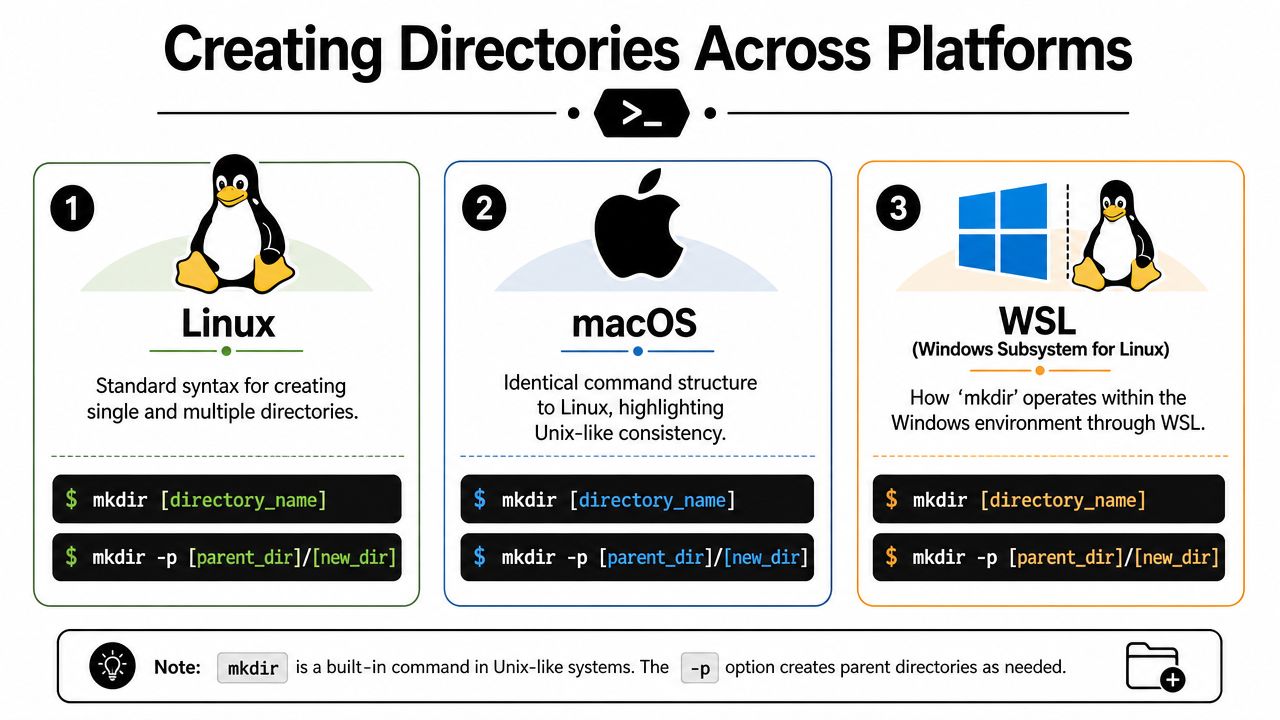
If you're working on a MacBook, an Ubuntu machine, or Windows Subsystem for Linux, the mental model is mostly the same. That consistency is useful for PMs who switch between company laptops, cloud development boxes, and local AI sandboxes.
Start with the common cases
Here are the commands worth memorizing first:
| Use case | Command | What it does |
|---|---|---|
| Create one folder | mkdir research |
Makes a research directory in your current location |
| Create several folders | mkdir docs prompts evals |
Makes multiple sibling directories at once |
| Create nested structure | mkdir -p ai-assistant/data/raw |
Builds the full path in one shot |
The important flag is -p, also written as --parents. On Linux and similar systems, it creates missing parent directories and doesn't fail if the directory already exists, which makes it especially useful in scripts and repeatable setup work, according to Red Hat's explanation of mkdir behavior.
That last point matters more than most beginner guides admit. If you're creating environments repeatedly, for example for prompt testing, model evaluation, or a new feature discovery repo, idempotent commands are your friend. You want commands that can run again without breaking.
A PM-friendly example
Say you're organizing an AI feature experiment. A useful structure might look like this:
briefs/for problem statements and PRDsdata/for sample inputs or annotation filesprompts/for prompt variantsevals/for test cases and outputs
Instead of creating each folder manually, run:
mkdir -p ai-feature-experiment/{briefs,data,prompts,evals}
That's the kind of pattern that starts to feel powerful fast.
To see the command in motion, this walkthrough is a good companion:
If you're using cloud IDEs or remote coding environments, these basics transfer directly. That's one reason PMs who learn terminal habits tend to ramp faster in AI-heavy workflows, especially in browser-based development environments like those described in this cloud code tutorial for PMs.
mkdir -pis the command you reach for when you care more about a reliable setup than about typing the fewest characters.
The Windows Approach with Command Prompt and PowerShell
Windows is simpler than many PMs assume. In Command Prompt, mkdir and md are the same command. If command extensions are enabled, which Microsoft says is the default behavior, Windows can create intermediate directories in one call instead of forcing you to build each parent one by one, as documented in Microsoft's mkdir command reference.
That means this works in many normal Windows setups:
mkdir ProjectsAIExperimentInputs
Command Prompt versus PowerShell
The practical comparison looks like this:
| Environment | What to use | Good to know |
|---|---|---|
| Command Prompt | mkdir or md |
Both work, and recursive creation is often available by default |
| PowerShell | mkdir |
Familiar command name, easier transition if you also use Unix-like shells |
| WSL | mkdir -p |
Behaves like Linux, useful if your team standardizes on shell scripts |
For a PM, the main distinction isn't ideology. It's predictability. If your engineering team uses Bash scripts, WSL gives you closer behavior to Linux and macOS. If you're operating entirely inside Windows-native tooling, Command Prompt or PowerShell is often enough for basic folder work.
What actually trips people up
Two trade-offs matter on Windows:
- Path behavior: Deep directory trees can fail if you hit filesystem path limits.
- Shell differences: Unix tutorials often show
-p, while Windows Command Prompt may handle recursive folder creation differently.
That means copying commands blindly from a Linux-focused README isn't always safe. Check which shell you're in before you paste.
A practical habit is to keep a tiny note for yourself with examples for both environments. That sounds basic, but it prevents a lot of friction when you're moving between corporate Windows setups, vendor demos, and internal documentation. If you already use shortcuts to streamline repetitive desktop tasks, the same thinking applies here, just in terminal form, as with guides like creating quick desktop access workflows.
Mastering Paths and Setting File Permissions
Creating a directory is easy. Creating it in the right place, with the right access, is what separates someone who knows a command from someone who can use it responsibly.
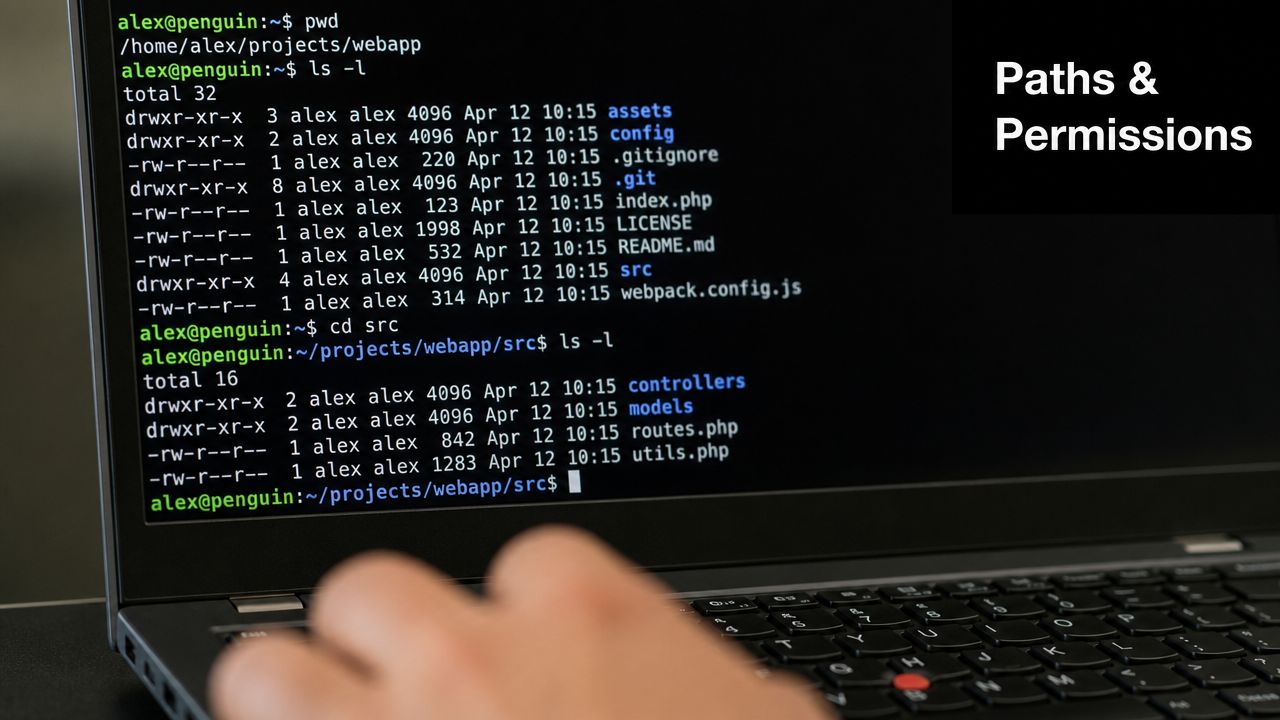
Relative paths versus absolute paths
Think of a relative path as giving directions from where you're currently standing. Think of an absolute path as giving the full street address.
Examples:
- Relative path:
mkdir project-x - Nested relative path:
mkdir -p work/project-x/docs - Absolute path:
mkdir -p /Users/name/work/project-x/docs
If you run mkdir project-x, the terminal creates that folder inside your current working directory. If you're in the wrong place, the folder still gets created, just not where you intended.
That's why one of the most useful habits is to pause before pressing Enter and ask, “Where am I creating this?” PMs who work across repositories, shared drives, and cloud workspaces need this reflex.
Most directory mistakes aren't command mistakes. They're path mistakes.
Permissions that affect collaboration
On Linux and Unix-like systems, mkdir also supports -m, which lets you set permissions at creation time. For example:
mkdir -m 755 app-logs
or
mkdir -m a=rwx open-sandbox
A common blind spot in mkdir guides is permissions. The -m flag can set modes like 755, but the system's umask may alter the final permissions, which is a common source of confusion when people create shared project folders, as described in this Linux mkdir examples guide.
A simple way to read 775
You don't need to memorize Unix internals to use this well. A lightweight interpretation is enough:
- First digit: what the owner can do
- Second digit: what the group can do
- Third digit: what everyone else can do
In a shared PM, data science, and engineering setup, 775 is often easier to reason about than a default permission state you didn't choose. It gives broad access to the owner and group while being more restricted for others.
A practical workflow looks like this:
- Choose the location carefully: Use the right path first.
- Create the folder with intent:
mkdir -m 775 shared-dataset - Verify what happened: If behavior seems odd, check whether
umaskchanged the final result. - Avoid guessing on shared systems: If the folder is for a production or security-sensitive environment, ask the engineer or admin responsible for that machine.
Permissions aren't just a Unix trivia topic. They're a collaboration topic. A PM who understands that will prevent unnecessary back-and-forth when teams share datasets, notebooks, logs, or deployment artifacts.
Scripting Project Structures for Repeatable Success
mkdir evolves beyond a one-off command. It becomes part of a system.
One of the most useful shell patterns is combining mkdir -p with brace expansion. That lets you create complex trees in a single command, such as mkdir -p project/{data,docs,src}, which technical tutorials highlight as a practical way to build reproducible project structures quickly, as shown in this Tecmint mkdir examples guide.
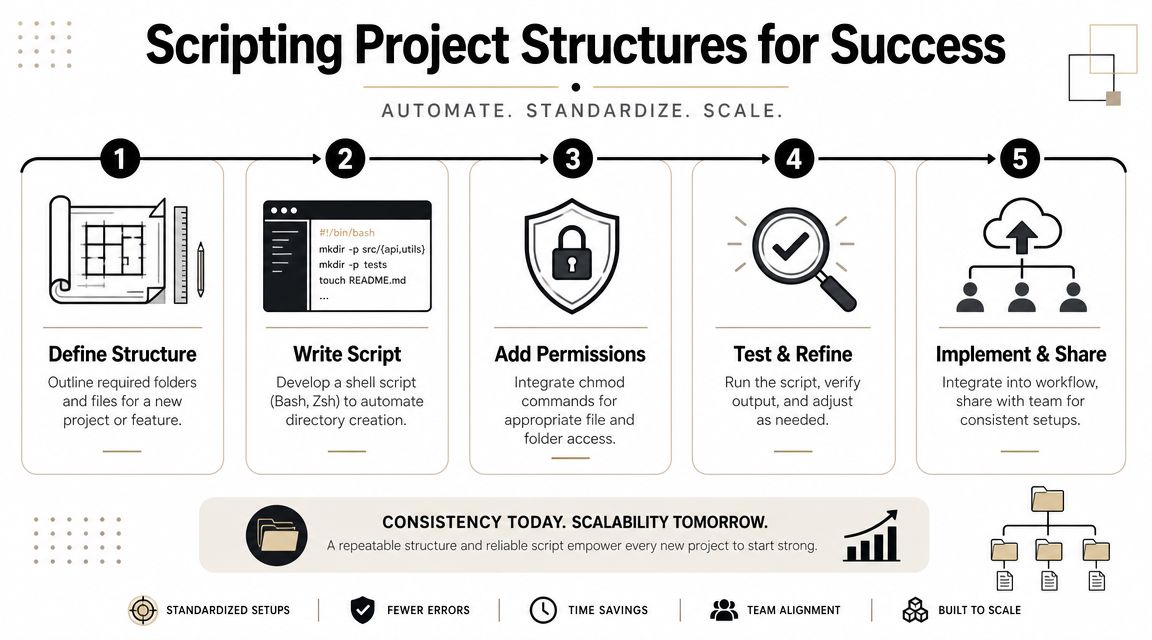
A reusable AI project skeleton
For PMs working with AI products, a project usually needs more than one folder. You often need places for inputs, prompts, evaluations, notes, and source artifacts. A command like this gets you there fast:
mkdir -p new-ai-model/{data/{raw,processed},prompts,evals,notebooks,src,docs}
That creates a clean structure in one step. It also makes your work easier to hand off. Engineers, analysts, and designers can all see where things belong.
A copy-paste script you can actually use
Save this as setup-ai-project.sh:
#!/bin/bash

PROJECT_NAME=$1

mkdir -p "$PROJECT_NAME"/{data/{raw,processed},prompts,evals,notebooks,src,docs}

echo "Created project structure for $PROJECT_NAME"
Then run:
bash setup-ai-project.sh customer-support-copilot
That's enough to standardize your starting point for discovery work, prototype experiments, or internal demos.
A folder structure is a product decision in miniature. It tells people what work matters, what gets grouped together, and what “done” should look like.
What works and what doesn't
What works:
- Use one structure repeatedly: Repetition builds speed and reduces decision fatigue.
- Name folders for real work products:
evals,prompts, anddocsare clearer than vague labels. - Share the script with your team: Consistency improves onboarding and handoffs.
What doesn't:
- Rebuilding structure manually every time: That introduces drift.
- Overdesigning on day one: You don't need a perfect taxonomy for a small experiment.
- Mixing personal naming habits inside shared repos: That confuses collaborators quickly.
If you want a place to store these scripts and related planning assets, a lightweight system with reusable docs and templates helps. One option is keeping them alongside your operating documents and checklists, similar to the resources collected in these product manager templates.
For PMs, this is the bigger lesson. Reproducibility isn't just an engineering concern. It's how you make experiments easier to restart, compare, audit, and scale.
Quick Fixes for Common Directory Errors
When mkdir fails, the error message is usually telling you something useful.
Permission denied
You're likely trying to create a folder somewhere you don't control. Move to a directory you own, or confirm whether that location is meant to be writable.File exists
The name is already taken. Sometimes it's an existing directory. Sometimes it's a file with the same name. Check before retrying.No such file or directory
You probably tried to create a nested path without creating the parent folders first. On Linux, macOS, and WSL, usemkdir -pfor nested structures.
If you're copying text between shells, editors, and terminals, formatting mistakes can also break otherwise valid commands. Clean input matters more than most people realize, especially when pasting structured commands, as with practical terminal habits discussed in this paste command guide.
The useful mindset is simple. Don't panic, read the exact error, and assume the terminal is being literal. Most fixes take less than a minute once you know what the message is pointing to.
If you want more practical PM skill-building that sits at the intersection of product, technical fluency, and AI workflows, explore Aakash Gupta. His site includes newsletters, podcasts, templates, and coaching-oriented resources for PMs who want to operate more effectively with engineering and ship with less friction.

One reply on “Create Directory Terminal: Essential Guide for 2026”
[…] for troubleshooting and admin work. If you want another simple terminal habit, this walkthrough on creating directories from terminal is a good companion […]